Building tiles with your assistant
Describe the tile, look at the preview, approve it, and let the assistant place it. What to ask for and what to expect.
Once your assistant is connected, you work in plain sentences. It can do most of what you can do in Tile Studio, the Rules page and the Target Editor.
Start with what you want
Say which page the tile is for, who it is for, and what you want the customer to do. Hand over anything you already have: a brief, a design file, copy from a document, images in a folder.
Build a tile for the Profile page that asks customers to update their scent preferences. Image on the left, a short paragraph and two buttons on the right. The main button goes to /pages/preferences.
Give it the real links. If you do not, a careful assistant asks for them, and a careless one makes them up.
Look at the preview before anything is saved
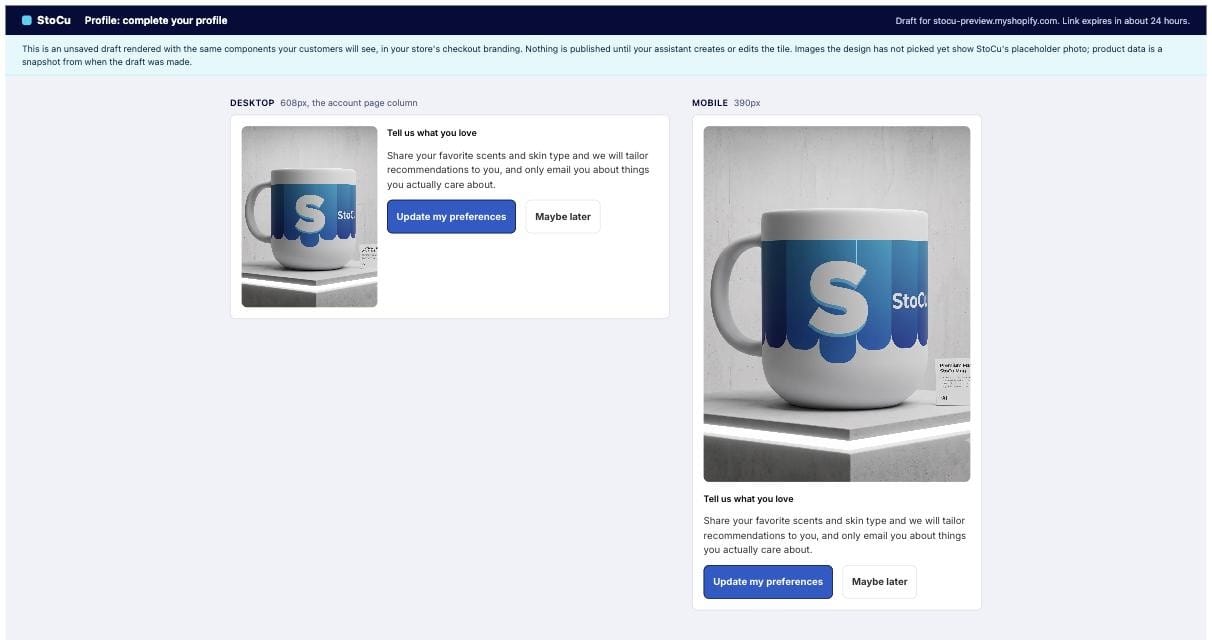
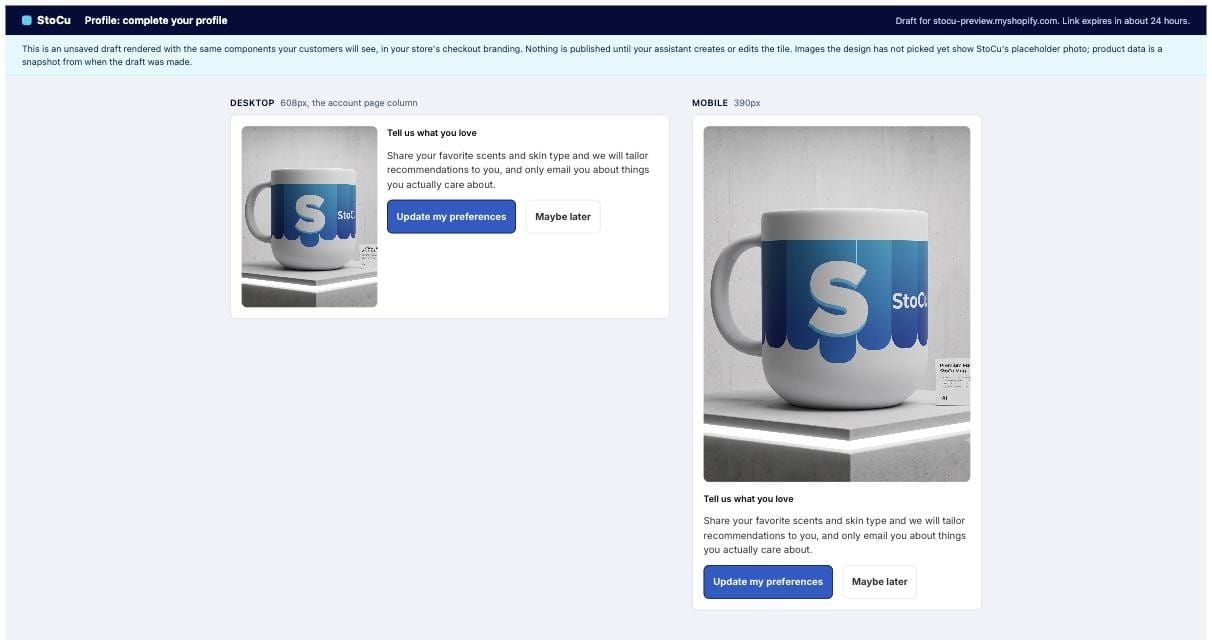
The assistant answers with a preview link. The page shows the draft at desktop and phone width, drawn with the same parts your customers see, in your store's own checkout branding. Nothing has been saved at this point. Ask for changes and you get a fresh preview. The link works for 24 hours.
When it looks right, say so. The assistant saves exactly the draft you approved. The tile appears in My Tiles and is published a few seconds later.
What your assistant can do
- Create and edit tiles: layouts, sections, text, buttons, icons, images, colors and spacing.
- Use your products: search your catalog or a collection and build product cards and grids that stay current, as described in product cards and grids.
- Upload images from your computer: the file goes from your machine to your store's Files in Shopify, up to 20 MB, and the tile uses it. It can also reuse images that are already in Files.
- Display rules and schedules: make a rule ("customers tagged VIP", "language is French") and set a start and end date.
- Variations: add a variation, change its words and choose who sees it.
- Place a tile on a page and position, move it, or take it off.
- Delete a tile. A good assistant asks you first.
- Send me feedback. If something goes wrong on our side, the assistant gets a report number and can pass it along with your note.
The one step that stays with you
A placed tile shows to customers only where the StoCu block is on that page in Shopify's editor. Shopify does not let any app add the block for you. When the assistant places a tile it tells you whether the block was on the page the last time you opened the Target Editor, and gives you the link and the steps if it was not. See going live.
Tips
- One request at a time gives better results than a long list.
- Ask for a new tile when you want a new tile. Reusing an old one to save time usually costs time.
- Assistants work quickly. StoCu allows about sixty actions and ten saves a minute per store, which is plenty for building. If the assistant says it has to wait a minute, that is why.
- Your assistant and Tile Studio edit the same tiles. Open any tile in Tile Studio afterwards and carry on by hand.
- Anyone who has a preview link can open it for 24 hours, so share it with the people who should see the draft.
Questions, or something an assistant could not do? Email me: team@storefrontcurator.com.