Inserting custom dynamic metafields
Pull any customer metafield into tile copy with curly brackets, a fallback value, and the two Shopify access settings that make it work.
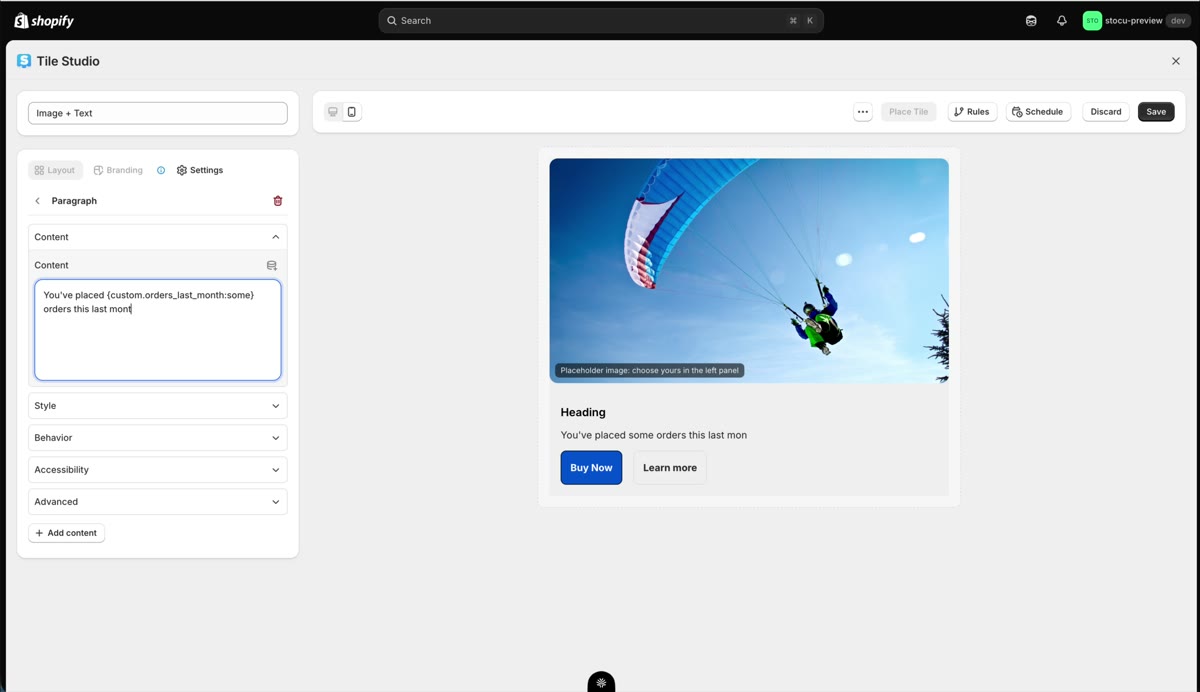
Dynamic text covers the built-in customer fields like first name. Custom metafields take it further: any customer data you store in Shopify (a loyalty tier, orders this month, store credit) can render right inside your tile copy. In this example, the tile tells each customer how many orders they placed in the last month.
Set up the metafield in Shopify first
Before touching StoCu, make sure the metafield itself is set up correctly. In your Shopify admin, go to Settings, then Metafields and metaobjects, choose Customers, and open your definition (here, orders_last_month).
Now the step that trips people up. Under Options on the definition:
- Storefront API access must be toggled on.
- Customer Account API access must be set to at least Read.
Without both, Shopify will not expose the value on customer pages, so StoCu cannot read it and your tile can only ever show the fallback. If custom metafields "do not work", this is the reason almost every time.
Custom metafields are typed, not picked
Any text field in Tile Studio (headings, paragraphs, and so on) can carry dynamic content. The dynamic insert menu on a content field lists the built-in customer and order fields: first name, last name, amount spent, and the rest. Custom metafields do not appear in that list. Instead, you enter them by hand with curly brackets.
The curly bracket syntax
Type an opening curly bracket, then the metafield's namespace and key separated by a dot: {custom.orders_last_month. The full reference sits on the definition page directly under the Name field, in the form namespace.key.
Typos are the easy mistake here, so the reliable move is to copy the reference straight from the definition page (there is a copy icon next to it) and paste it between your brackets.
Always add a fallback
A fallback value renders whenever the real value is blank, null, or cannot be read, so the sentence always reads naturally. After the key, type a colon, then the fallback, then close the bracket:
You've placed {custom.orders_last_month:some} orders this last month.
The editor preview always shows the fallback, since no customer is logged in there; seeing your fallback in the preview is the sign the syntax parsed. Save, and the tile is ready to place like any other.
If the live tile only ever shows the fallback for a customer who definitely has a value, work backwards: check Storefront API access and Customer Account API access on the definition, then check the reference matches namespace.key exactly. And test as a real logged-in customer, not the editor preview; the preview shows the fallback by design.Still stuck? Email me: team@storefrontcurator.com. I answer these myself.