Guided setup: build a tile one step at a time
A new tile starts with one question. Tile Studio then walks you through the shape, the content, the words and where it goes, with a live preview beside you.
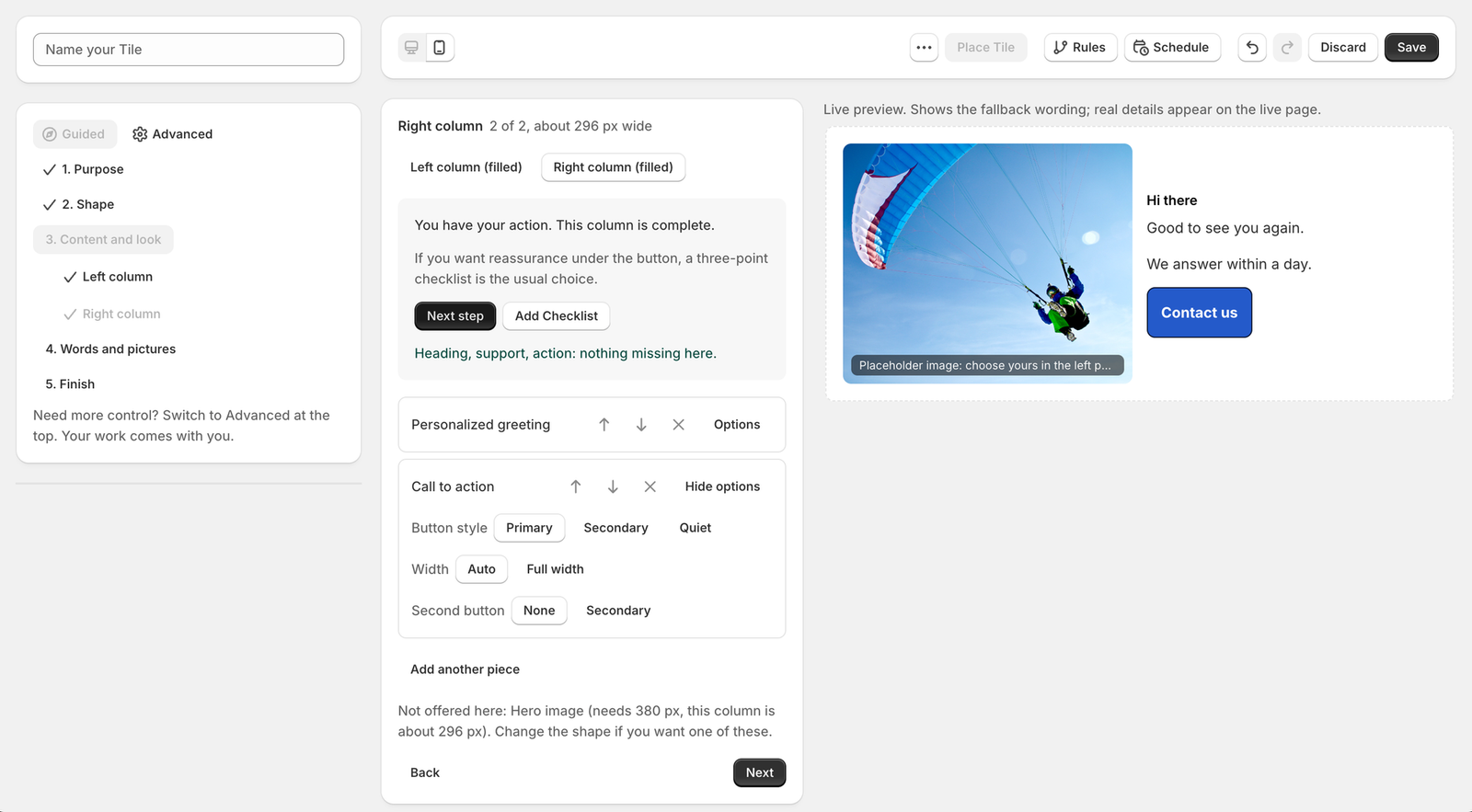
Guided setup is the way a new tile starts. It asks a few short questions, in order, and builds the tile as you answer. The preview on the right shows the real tile the whole time. When you want full control, Advanced is one click away and your work comes with you.
1. Purpose: what should this tile do?
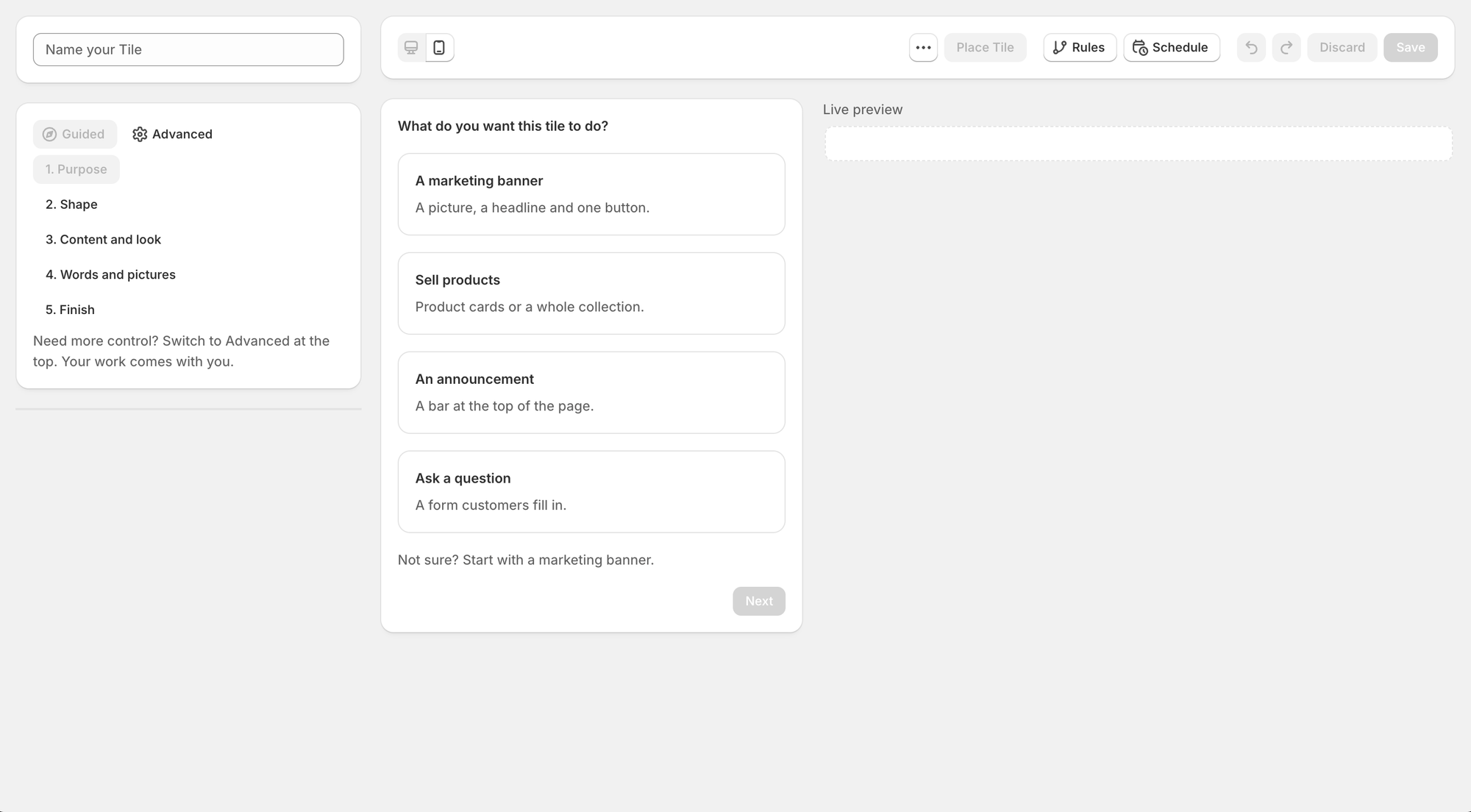
Create a tile and you see four boxes.
- A marketing banner. A picture, a headline and one button. Tile Studio then asks what the banner is for: Promote an offer or Welcome or inform.
- Sell products. Product cards or a whole collection, with live prices from your store.
- An announcement. A bar at the top of the page.
- Ask a question. A form customers fill in. It has its own steps, covered in Forms.
Your answer shapes everything after it: which shapes and pieces are offered, the wording Tile Studio starts you with, and the page it suggests at the end. Not sure? Start with a marketing banner.
2. Shape
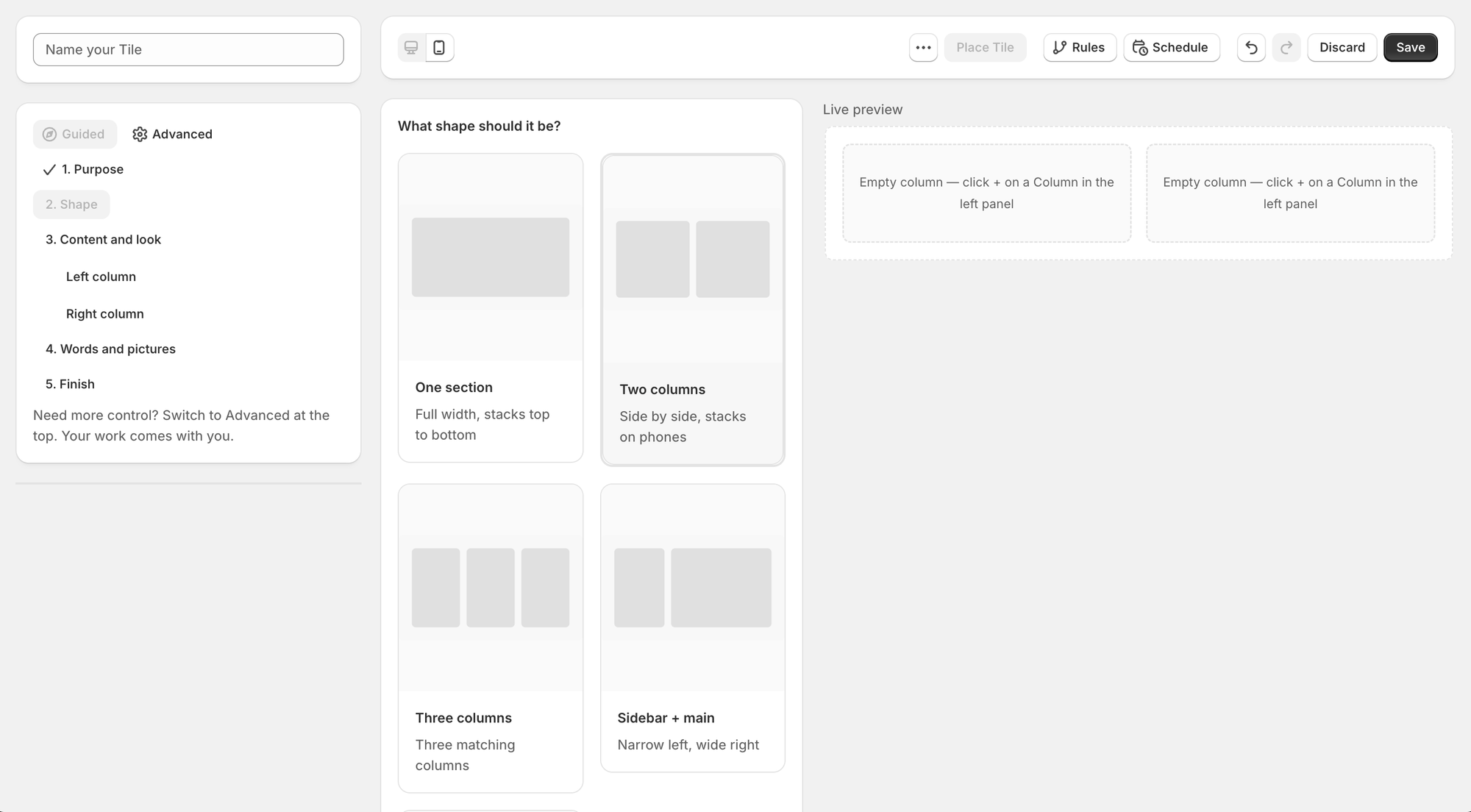
Pick how the tile is laid out: one section, two columns, three columns, or a narrow column beside a wide one. Columns sit side by side on a computer and stack on a phone. For Sell products there is also a product row.
3. Content and look
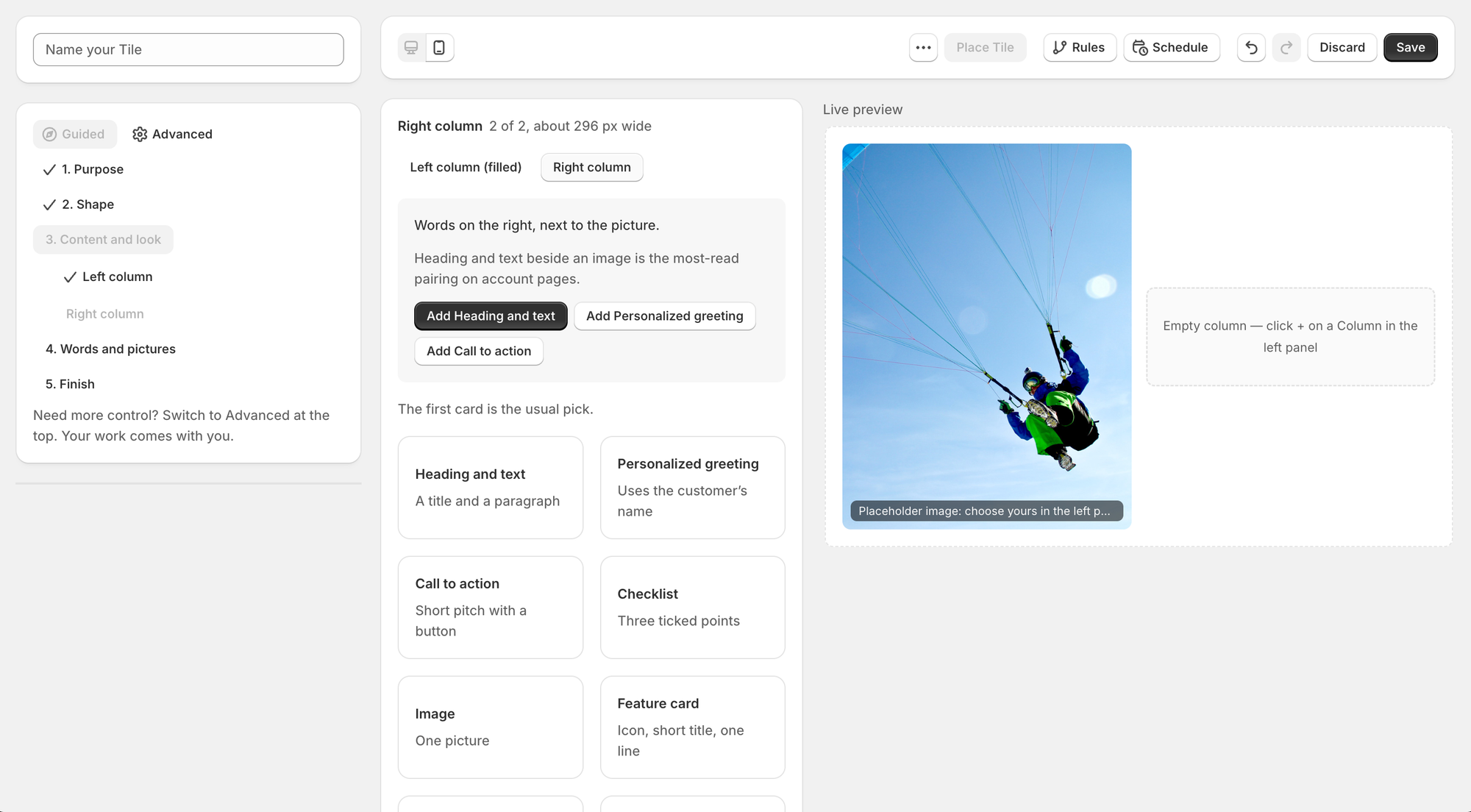
Now you fill one column at a time, in the order a customer reads them. At the top, Tile Studio suggests what belongs in this column and why, with buttons to add it. For two columns it suggests the picture on the left and the words beside it, because the eye lands on the image first.
Below the suggestion is every piece that fits: Image, Heading and text, Personalized greeting, Checklist, Feature card, Call to action, Buttons and Notice. A piece that needs more room than the column has is left out, and a line at the bottom tells you which one and why.
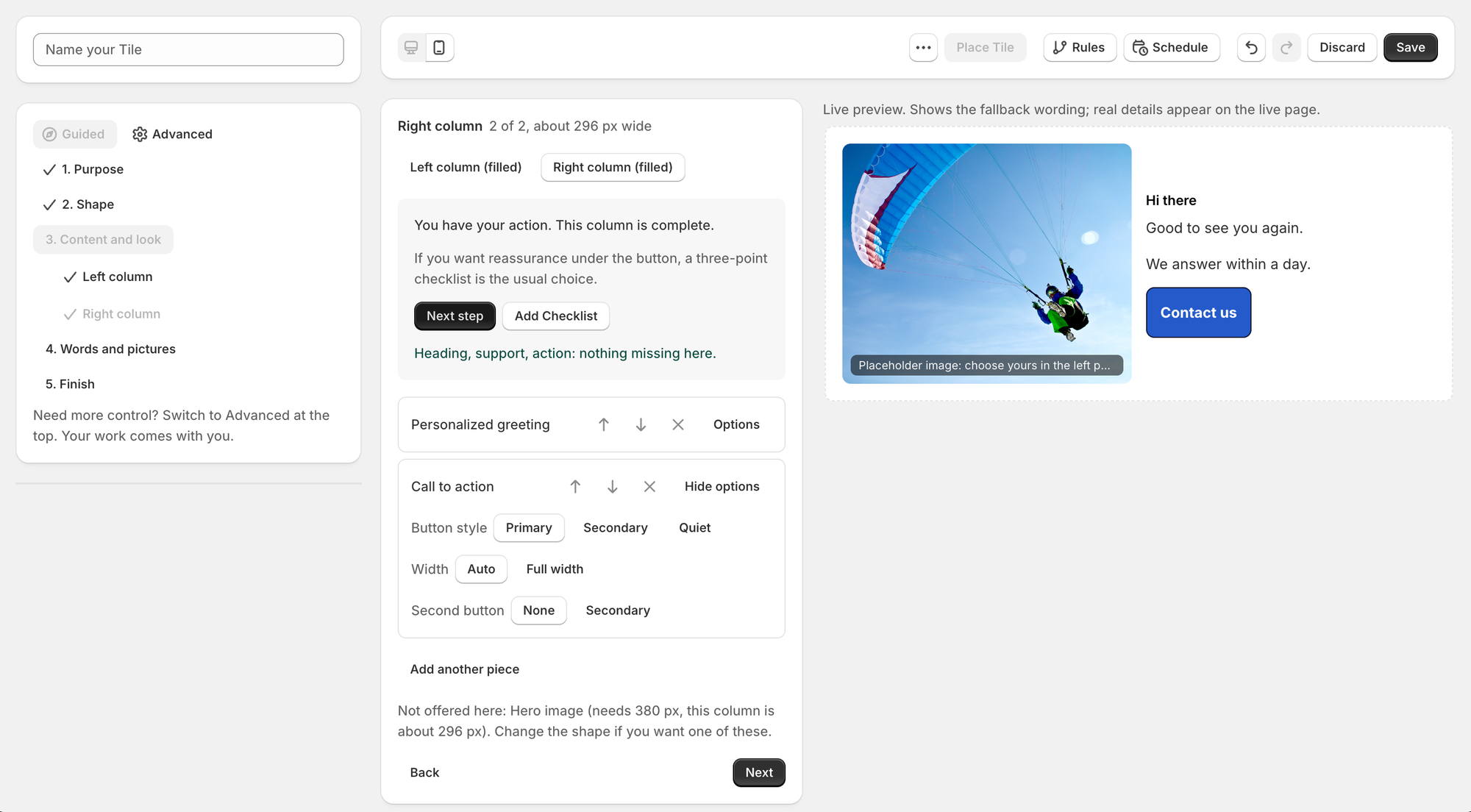
As you add pieces, the advice moves on: first the promise, then the proof, then the one thing you want the customer to do. When the column has all three it tells you so.
- The first piece in a column brings the heading. Later pieces fit under it, so the column reads as one thought and not three titles.
- Each piece has a few options right where you added it, such as button style and width, text alignment, or the shape of a picture.
- Use the arrows to reorder pieces and the X to remove one.
4. Words and pictures
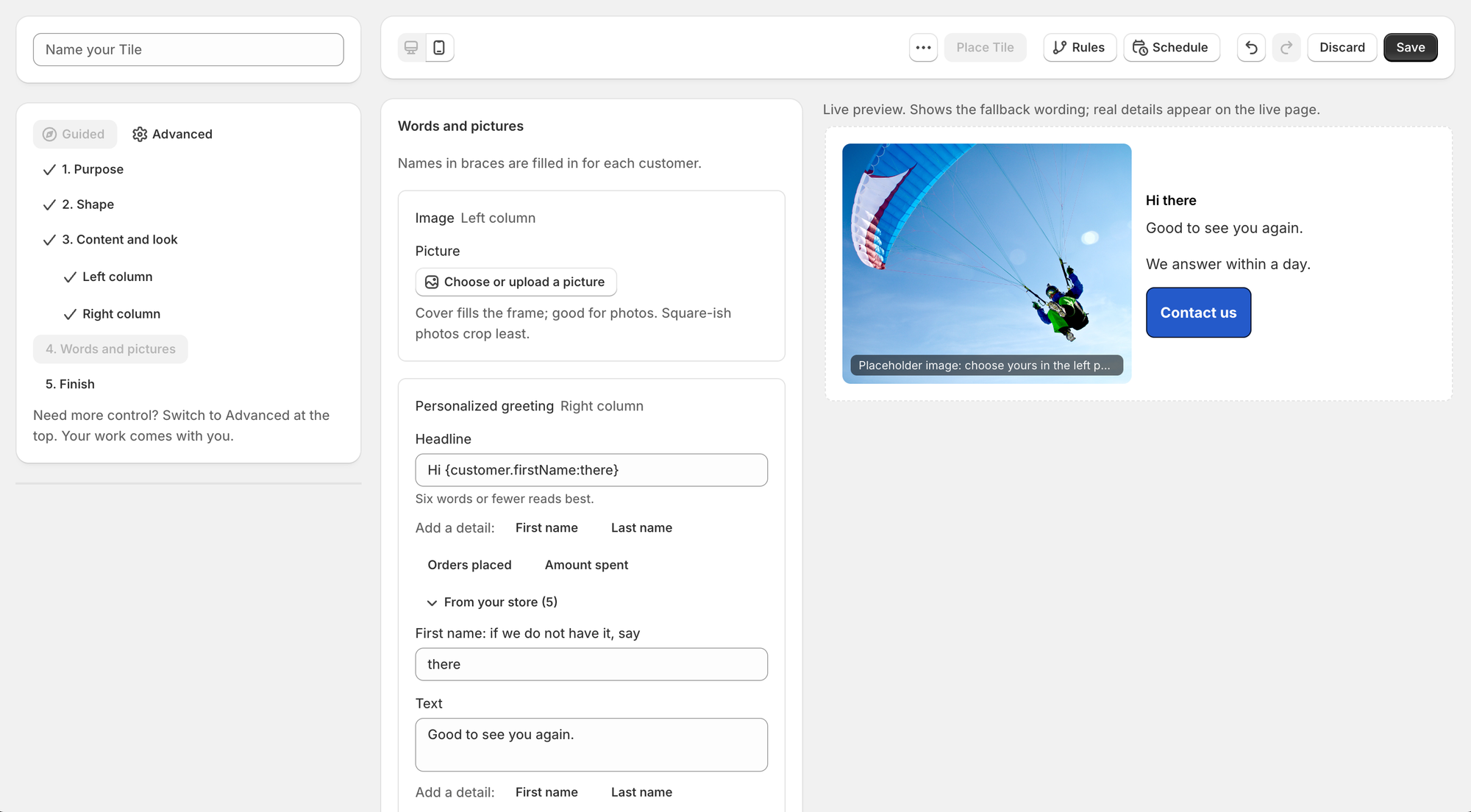
One short form per piece. Choose or upload a picture from your Shopify Files, and type your own headline, text and button label. The preview updates as you type.
To greet each customer personally, click a detail under Add a detail: first name, last name, orders placed or amount spent. From your store lists the customer fields your store has defined, which includes answers from your forms. Every detail gets a fallback, the words to use for a customer you know less about, so nobody ever sees a blank. The preview shows the fallback wording.
5. Finish
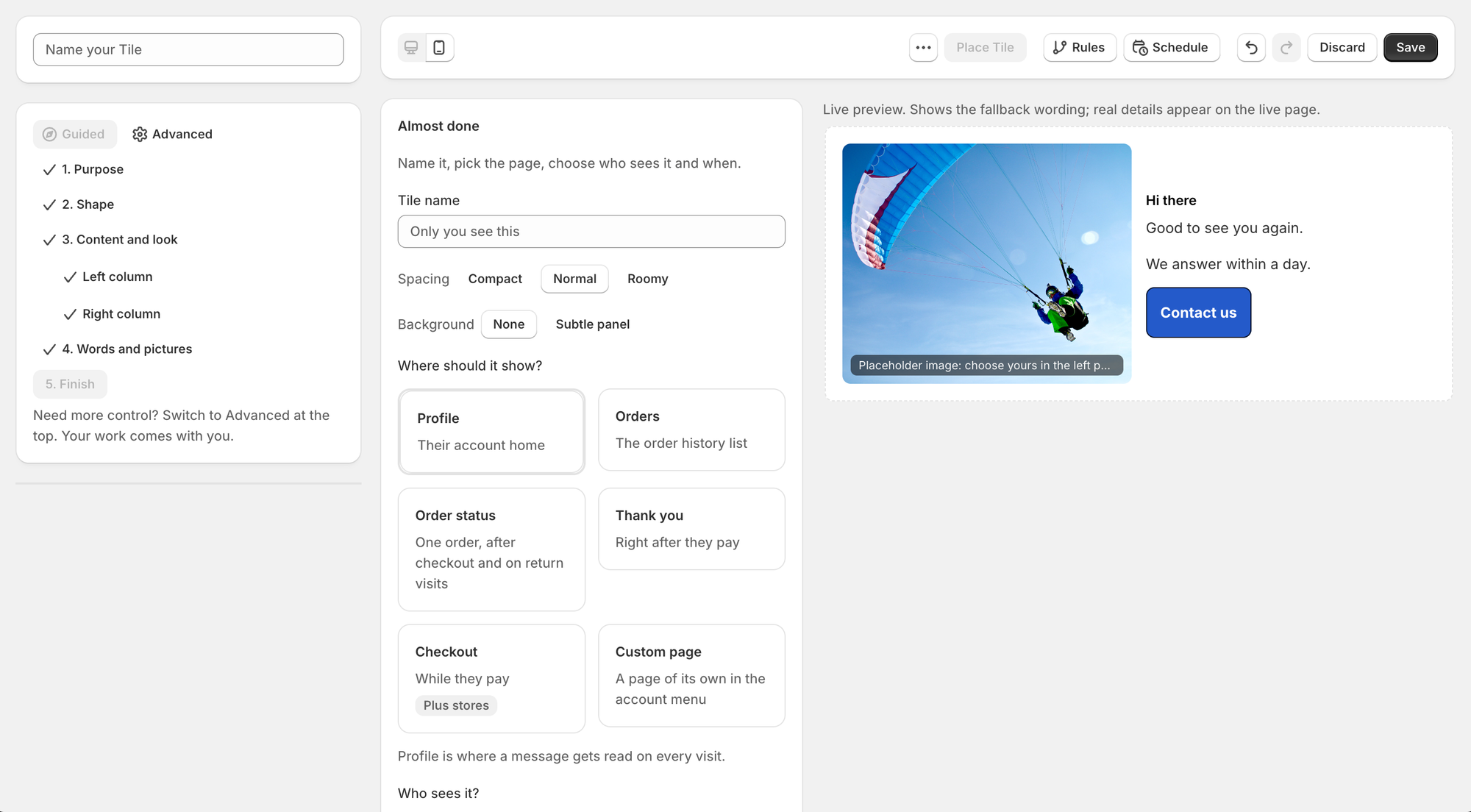
Name the tile, choose the spacing and background, and pick the page it is meant for: Profile, Orders, Order status, Thank you, Checkout (on Shopify Plus) or a custom page. Tile Studio suggests a page based on the purpose you chose. You can also choose who sees the tile with a display rule and when it shows with a schedule.
Press Save. The next screen offers to place the tile on the page you picked, which opens the Target Editor on that page. From there, Place your tile on an account page takes over.
Guided and Advanced
- Switch to Advanced at any time with the button at the top left. Nothing is lost.
- A tile you built in Guided opens in Advanced later, the same as every other tile. Click Guided and it picks up on the Finish step with everything you made.
- A tile built by hand in Advanced may hold content that Guided cannot read. Guided says so and sends you back to Advanced.
- Templates and tiles started by an assistant open in Advanced.
- The layout starters are still there. Switch a new, empty tile to Advanced to see them. See Templates and layout starters.
Questions? Email me: team@storefrontcurator.com. I answer these myself.