Forms: ask your customers a question and keep the answers
Put a short form on an account page. Every answer is saved to the customer in Shopify, where you can see it, segment on it and act on it.
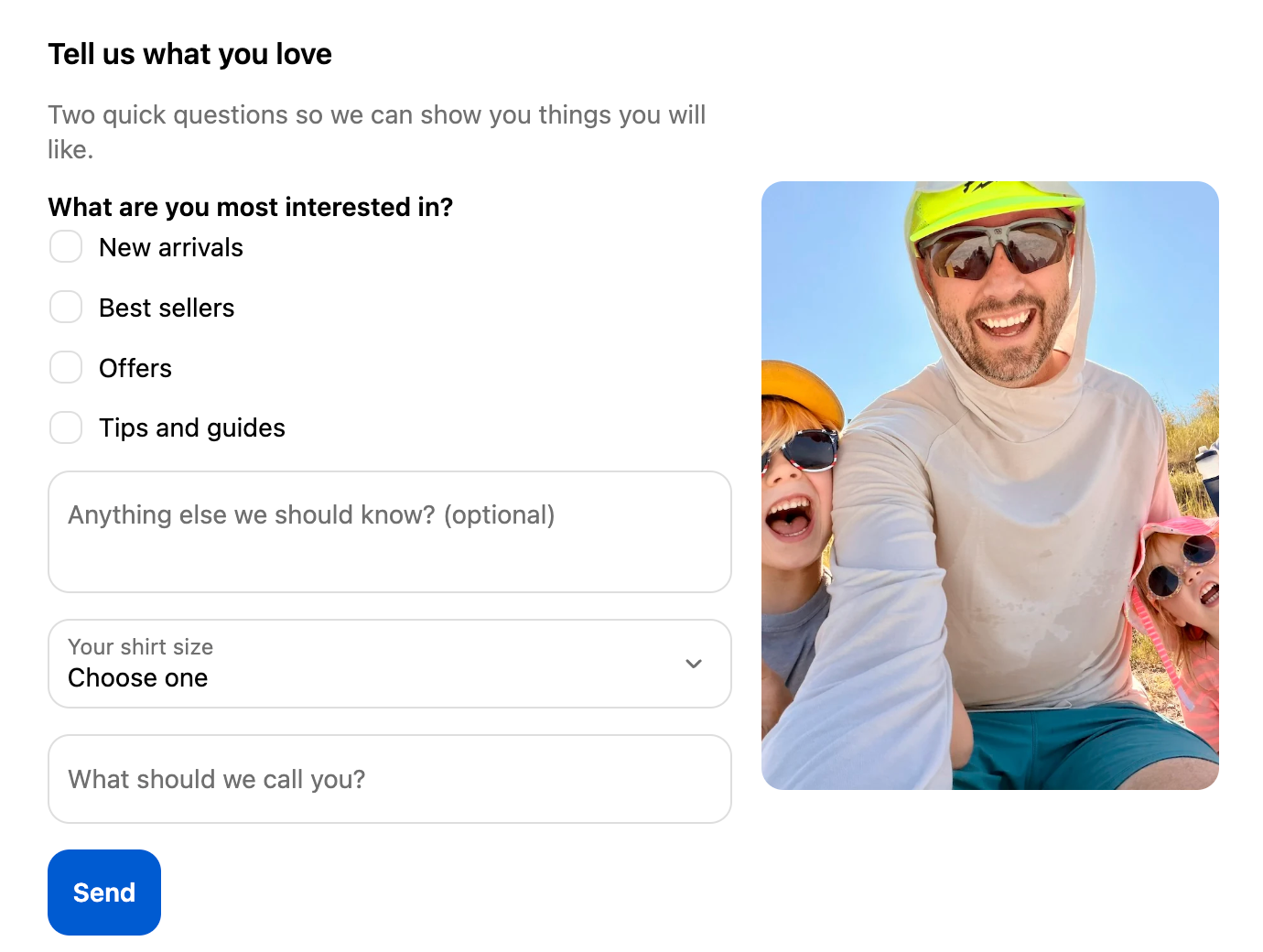
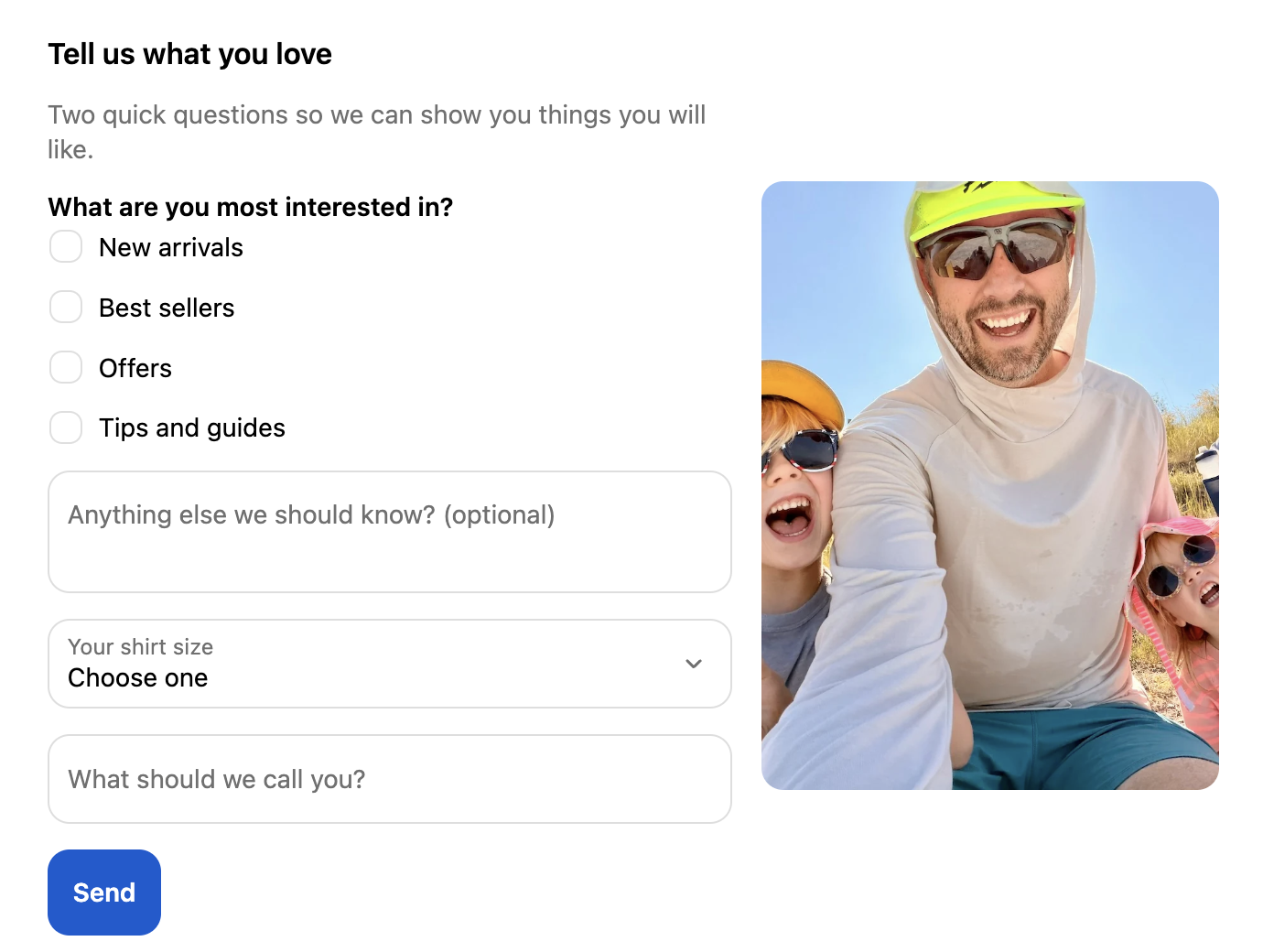
A form is a tile that asks your customers something: what they like, their birthday, their shirt size, or whether they want to apply for wholesale. The answers do not sit in StoCu. They are saved to the customer in Shopify, so you can see them on the customer's page, build segments from them and use them in your display rules.
Start in guided setup
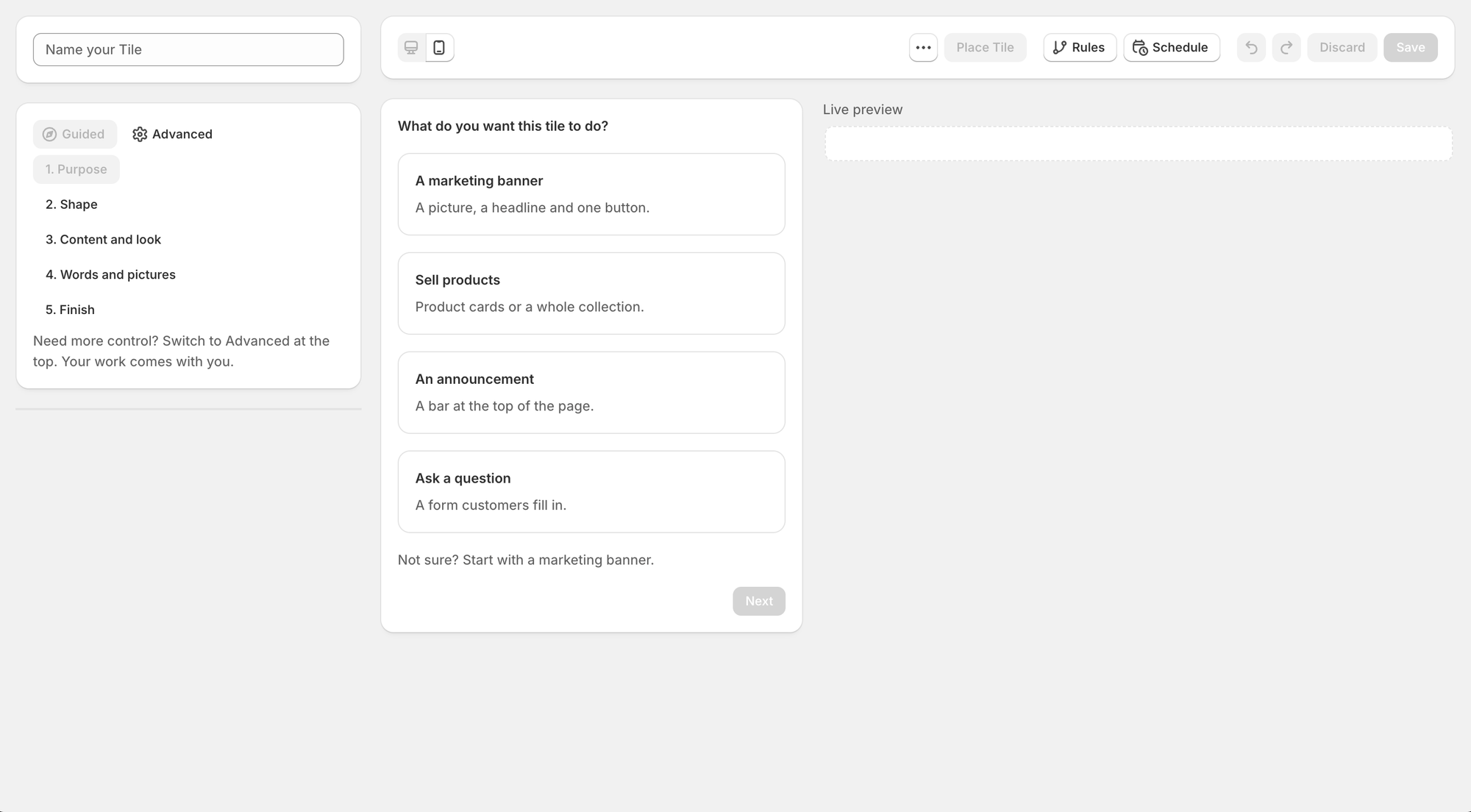
Create a new tile and Tile Studio opens in Guided, with four boxes. Choose Ask a question. The steps on the left change to the form path: What to ask, Look, Questions, What happens next, and Finish.
The other three boxes are covered in Guided setup.
What to ask
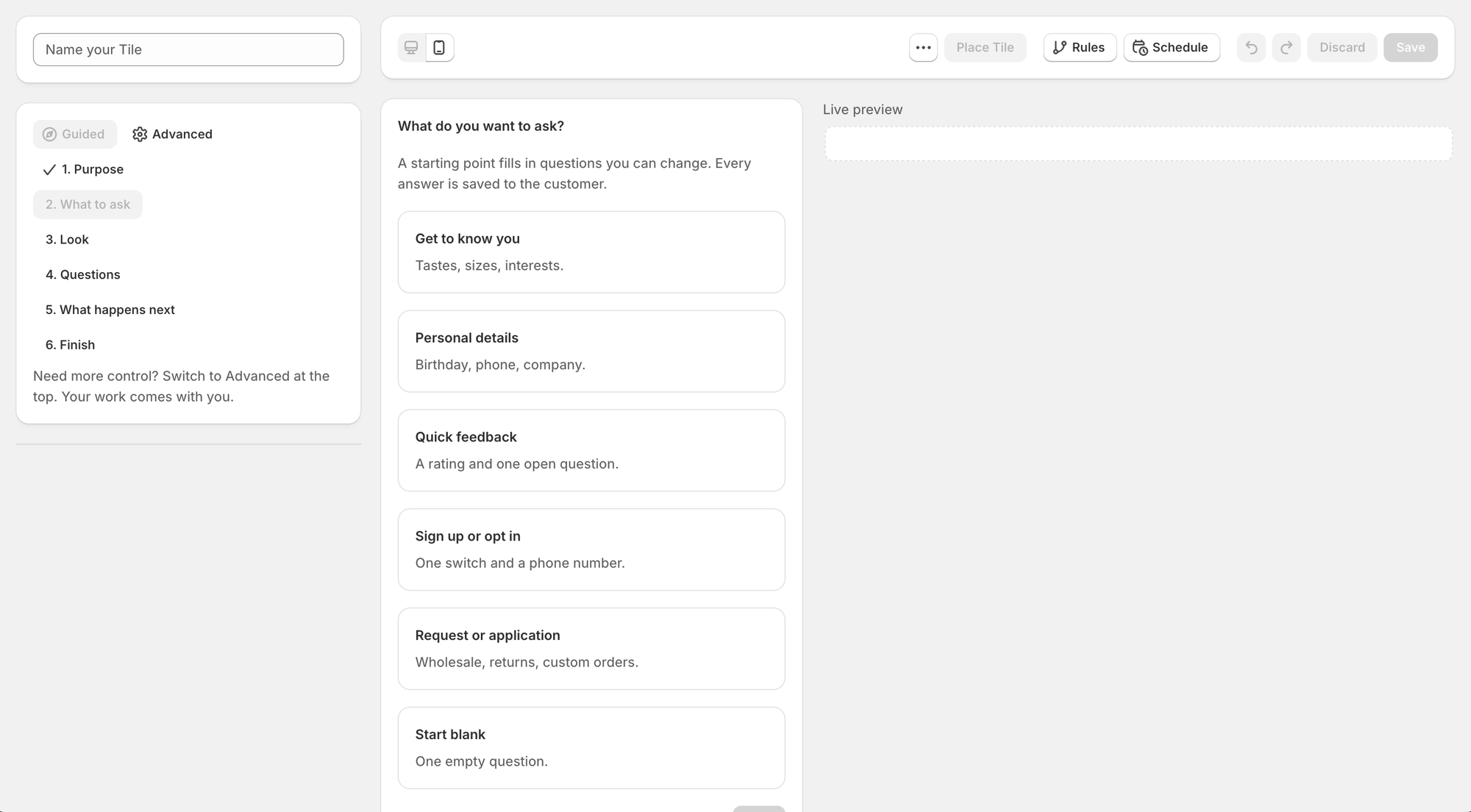
Pick a starting point. Each one fills in a few questions that you can change, so you never begin with an empty page.
- Get to know you. Tastes, sizes, interests.
- Personal details. Birthday, phone, company.
- Quick feedback. A rating and one open question.
- Sign up or opt in. One switch and a phone number.
- Request or application. Wholesale, returns, custom orders.
- Start blank. One empty question.
Look
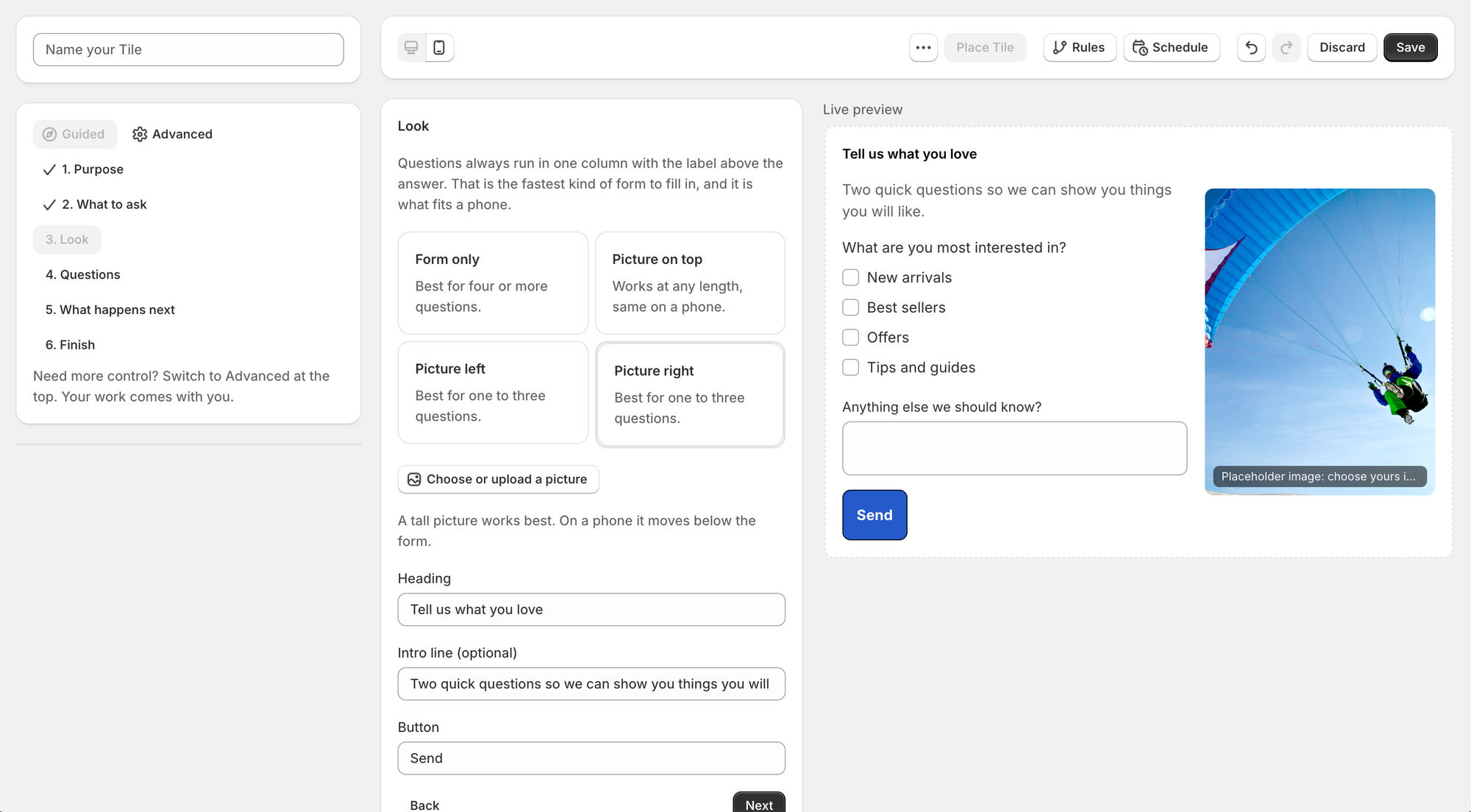
Choose a shape: Form only, Picture on top, Picture left or Picture right. Questions always run in one column with the label above the answer, because that is the fastest kind of form to fill in and it is what fits a phone. A picture at the side works best with one to three questions, and Tile Studio tells you when a form has grown too long for it.
On a phone, a picture on the left moves above the form and a picture on the right moves below it. This step also holds the heading, the intro line and the words on the button.
Questions
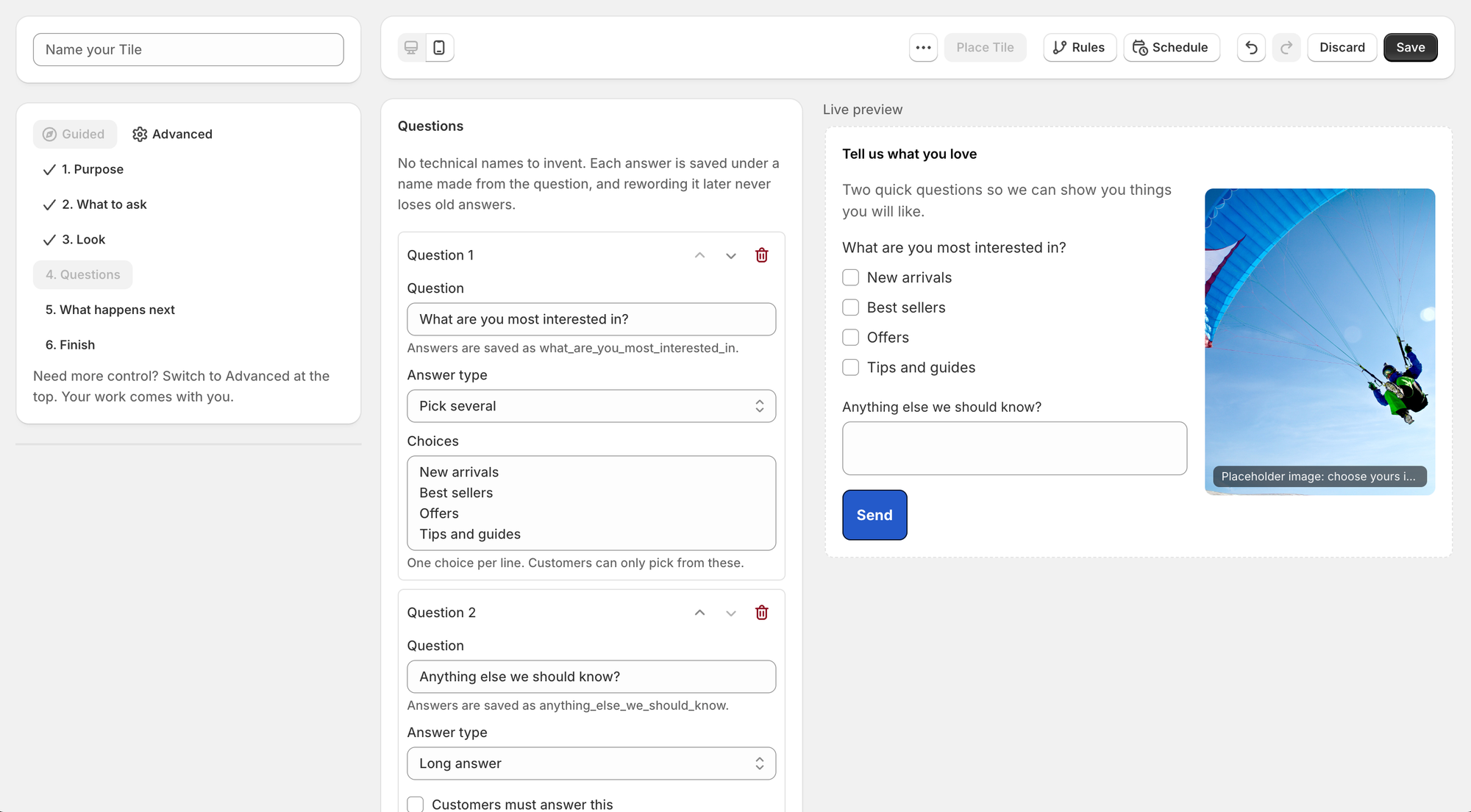
Each question is a card. Type the question, choose how customers answer it, and tick Customers must answer this if it is needed. There are ten answer types:
- Short answer and Long answer
- Pick one, Pick several, and Pick one (dropdown)
- Yes / no switch
- Date and Number
- Email and Phone
For the three "pick" types, write one choice per line. Customers can only pick from the choices you wrote.
You never have to invent a technical name. Each answer is saved under a name made from the question the first time you write it. Rewording the question later keeps the same name, so you do not lose older answers.
When a form has at least one needed question, the others are marked (optional) for the customer, the same way Shopify's checkout does it. A dropdown starts on Choose one, so nobody sends your first choice by accident.
What happens next
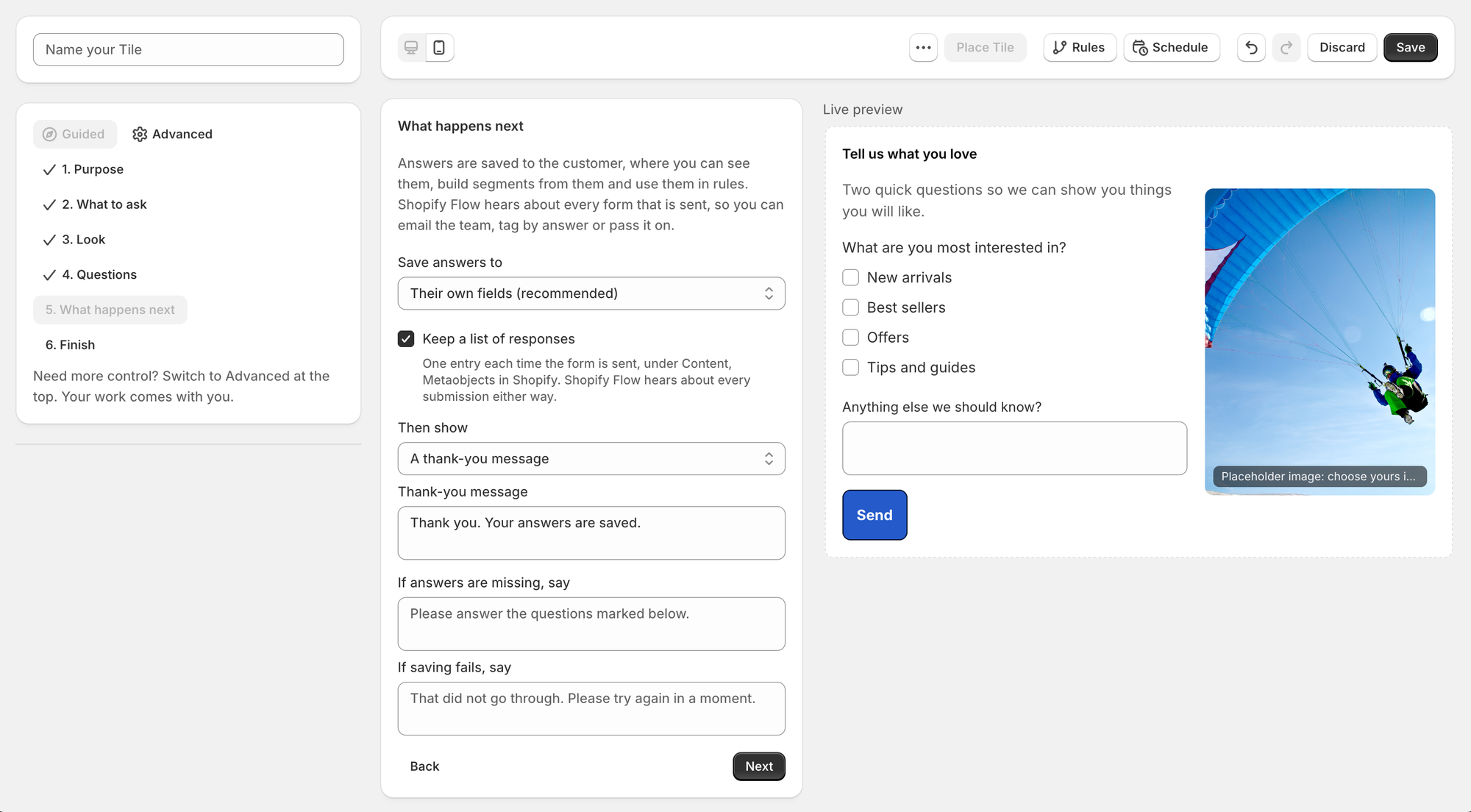
Save answers to decides where the answers go.
- Their own fields (recommended). One field per question on the customer, with the right type: text, a list, yes or no, a date or a number. StoCu sets the fields up the first time the form is sent. You will find them on the customer's page in Shopify, and you can filter customers and build segments by most of them.
- An entry you defined, for the customer. For stores that already keep customer details in their own metaobject.
- Tags, from choices only. Adds the customer's picks as tags. Only questions with fixed choices can do this, so a customer can never type their own tag.
- The company's own fields and an entry you defined, for the company. For B2B stores. The answers are saved to the company the customer is buying for.
Keep a list of responses is on by default. Each time the form is sent, StoCu adds one entry with the customer, the time and every answer. In Shopify, go to Content > Metaobjects, choose View read only, and open StoCu form response.
Form completion behavior decides what a customer who already sent the form meets the next time. The choices are covered in When customers come back below.
Then show is what the customer sees after sending: A thank-you message, which takes the place of the form so it cannot be sent twice by accident, or Another page. Opening another page works on account pages. At checkout, the customer sees the thank-you message instead.
Finish, save and place
Name the tile and save it. Then choose Place Tile and put it on a page in the Target Editor. Profile is the natural home for a form, since that is where customers keep their details, and a form works on the Orders, order status, checkout and thank-you pages as well. Checkout and thank-you need Shopify Plus.
A tile at Position 3 shows only where a StoCu block with Position 3, or a block with no Position, has been added in Shopify's editor. If your form does not appear, that is the first thing to check. Block positions explains it.
After you save, allow about a minute for the customer's page to catch up.
What your customer sees
The form lines up with Shopify's own cards on the page. If a needed answer is missing, the question is marked and your message shows at the top. After sending, the thank-you replaces the form.

Answers belong to a customer, so someone has to be signed in. A customer who opens the order status page from an email without signing in sees a short note with a Sign in link in place of the form.
When customers come back
Every send leaves a mark on the customer, a yes or no field named "Sent: " and the tile's name, which you can see on their page in Shopify and use in segments. Form completion behavior, in What happens next, uses it to decide what a customer who already sent the form meets on their next visit.
- Show their answers so they can update. Their earlier answers are filled in, from a short answer to a date, a dropdown or the boxes they ticked, and the button reads Update, or the words you put in Button when they come back. If a customer empties an answer they could see and sends the form, that answer is removed from their record. This is the default for forms that save to the customer's own fields, and it is only available for them, because those are the answers a form can read back.
- Show a message instead. The tile keeps its heading and intro, and your message takes the place of the questions.
- Hide the tile. The whole tile disappears for that customer. Its spot stays empty, the same as a tile hidden by a display rule, so nothing else moves. In Shopify's editor the tile still shows, with a note that says so.
- Start empty every time. The form opens blank on every visit, and a blank answer never removes an earlier one.
These work on account pages. At checkout and on the thank-you page the form cannot read the customer's fields, so it always shows there and starts empty.
Act on answers with Shopify Flow
Every form that is sent starts the Shopify Flow trigger StoCu form submitted. It carries the customer, the name of the tile, and a plain summary of the answers, one "Question: answer" line each. From there Flow can email your team, tag the customer, or pass the answers to another app.
If you have more than one form, add a condition on the tile's name so each workflow reacts to the right one. In my own test, a wholesale application tagged the customer about five seconds after they pressed Send.
Use answers in your tiles and rules
Because answers are real customer fields, the rest of StoCu can read them. In the guided words step they appear under From your store, ready to insert into a heading or a line of text. In display rules they work like any other customer field, so a tile can show only to customers who said they like new arrivals.
Change a form later
Open the tile. In Advanced, click the form in the layout list to open its panel, which has the same two parts: Questions and After it is sent. You can also add a form to any existing tile from the add menu.
Good to know
- A customer can send a form again. Their newer answers replace the older ones, and every send gets its own entry in the list of responses.
- A blank answer removes a saved one only when the form showed it to the customer first. See When customers come back above.
- The time in a response entry's title is in UTC.
- Company fields are saved as plain values for now, not as typed fields.
Questions? Email me: team@storefrontcurator.com. I answer these myself.