Tile variations: one tile, different versions for different customers
Keep one tile in one spot and show each group of customers its own words, images and links.
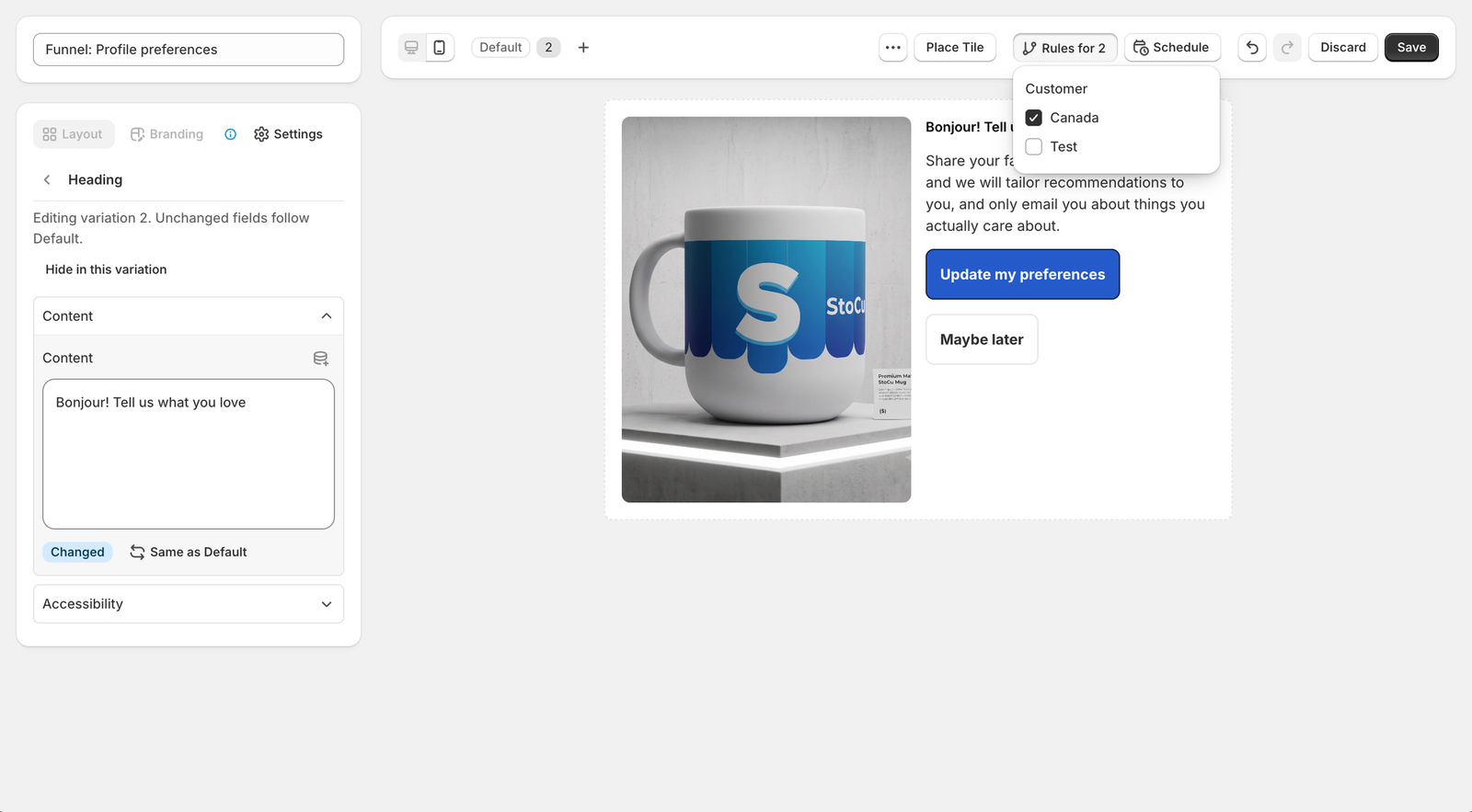
A variation is another version of the same tile for a specific group of customers. Your wholesale buyers, your VIPs, or shoppers in another country see their version. Everyone else sees Default. You place the tile once, and it stays one row in the Target Editor.
Before variations, the way to do this was to build several tiles, give each one a display rule, and stack them in the same spot. That still works. Variations are simply less to build and less to keep in step.
Add a variation
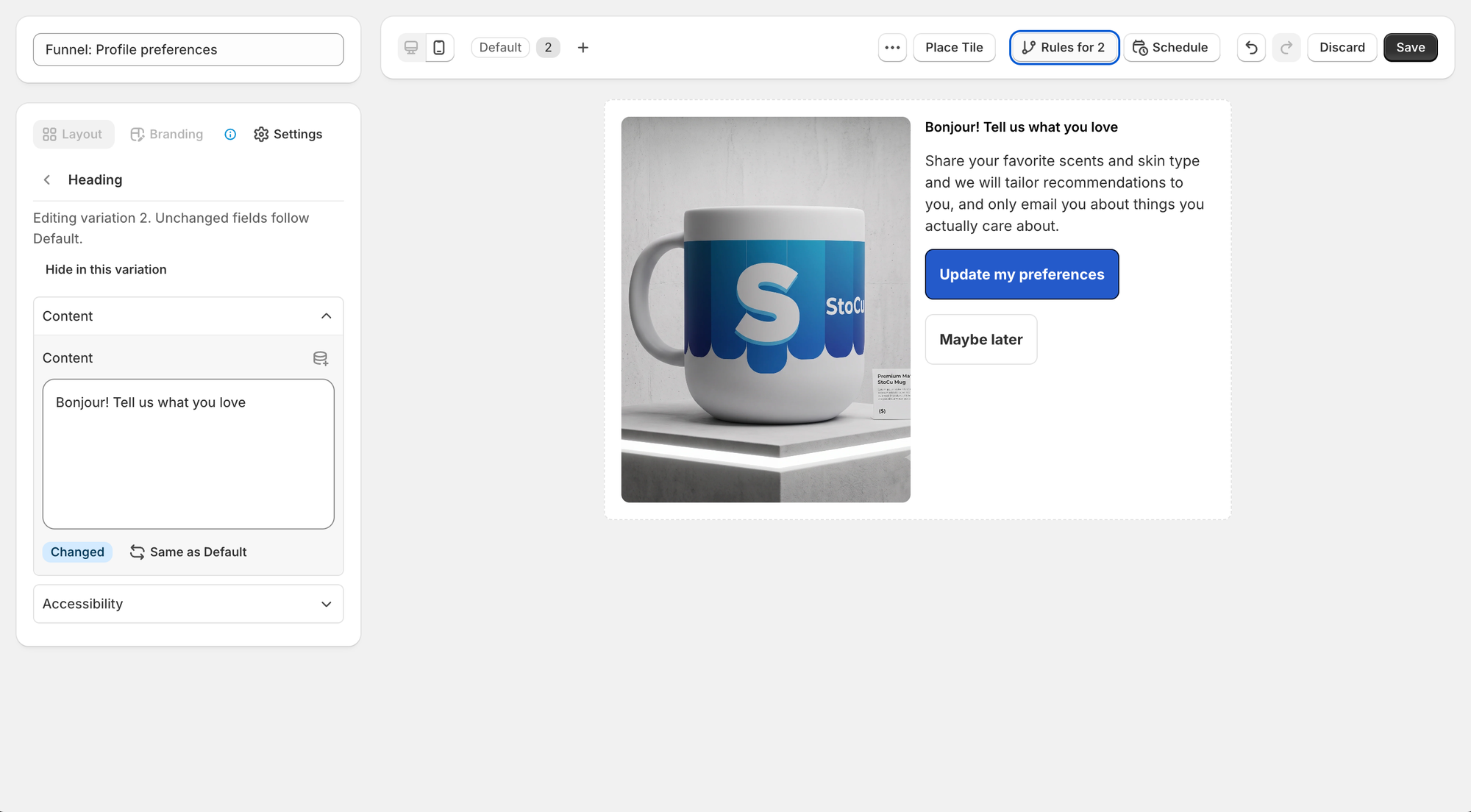
Open the tile in Tile Studio. Next to the desktop and mobile buttons you will see Default and a +. Click the + to add a variation. It gets the next number (the first one is 2, because Default counts as 1) and opens straight away, so whatever you change now belongs to it.
A tile can have up to ten variations plus Default.
Change only what differs
While a variation is open, the settings panel says Editing variation 2. Unchanged fields follow Default. Click any element and edit it as usual: the words, an image, a link, a color. The preview shows the variation as you work.
- A field you changed gets a Changed badge.
- Same as Default next to it puts that field back.
- Everything you did not touch keeps following Default. Edit Default later and every variation picks up the edit, except in the fields it changed.
The layout is shared
A variation cannot add, remove or move elements. The layout belongs to Default, so every version lines up the same way. When a variation should not show something, open that element and choose Hide in this variation. The row is marked Hidden in the list and you can show it again at any time.
To change the layout for everyone, switch back to Default and edit there.
Choose who sees it
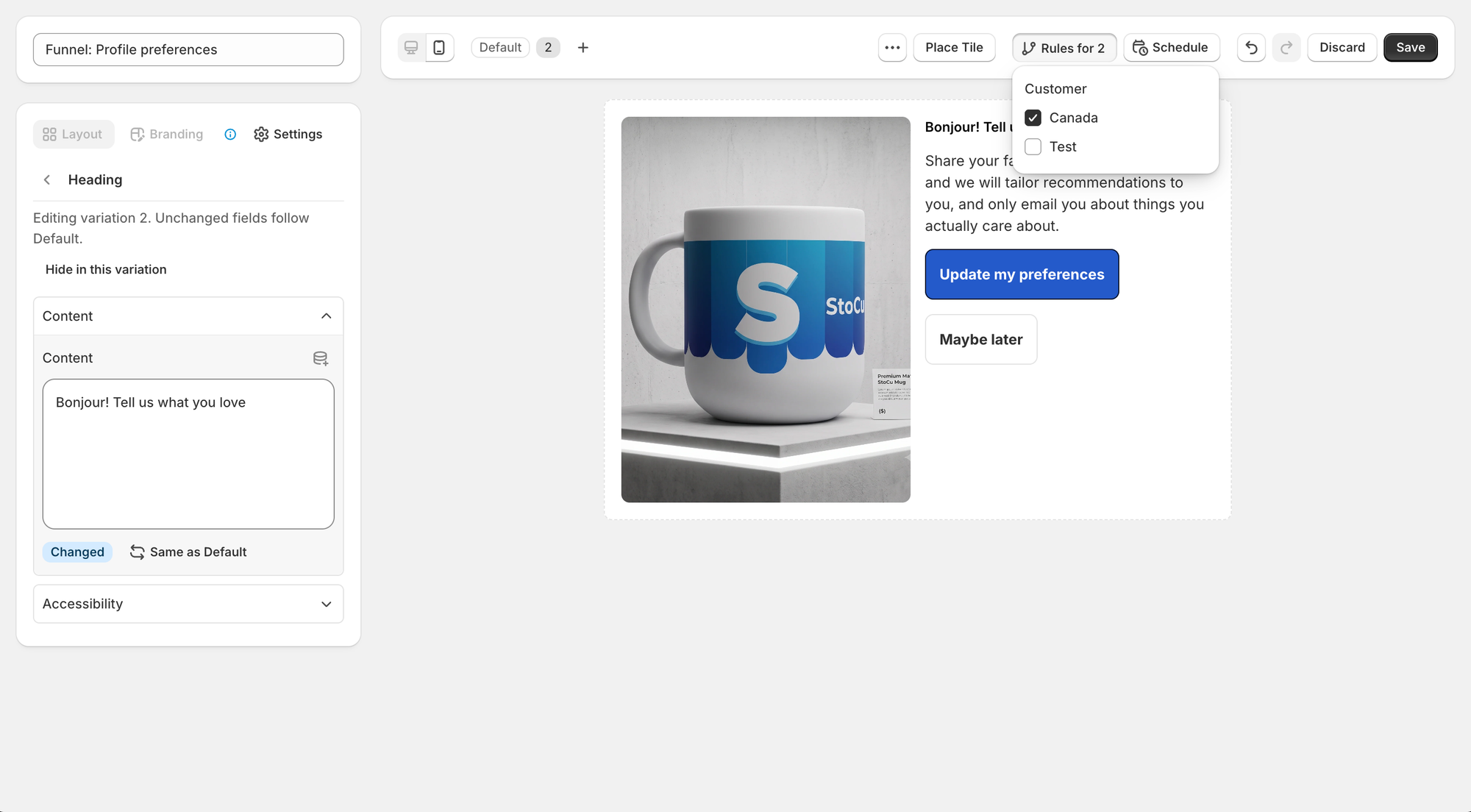
With a variation open, the Rules button reads Rules for 2 (or the variation's name). Pick one or more of your display rules. A customer who matches sees this variation.
A variation with no rule is paused. Nobody sees it, and its pill shows a pause icon until you give it a rule. That makes it safe to build a variation ahead of time.
The tile's own rules and schedule still decide whether the tile shows at all. Variations only decide which version a customer sees once it does.
Name and order your variations
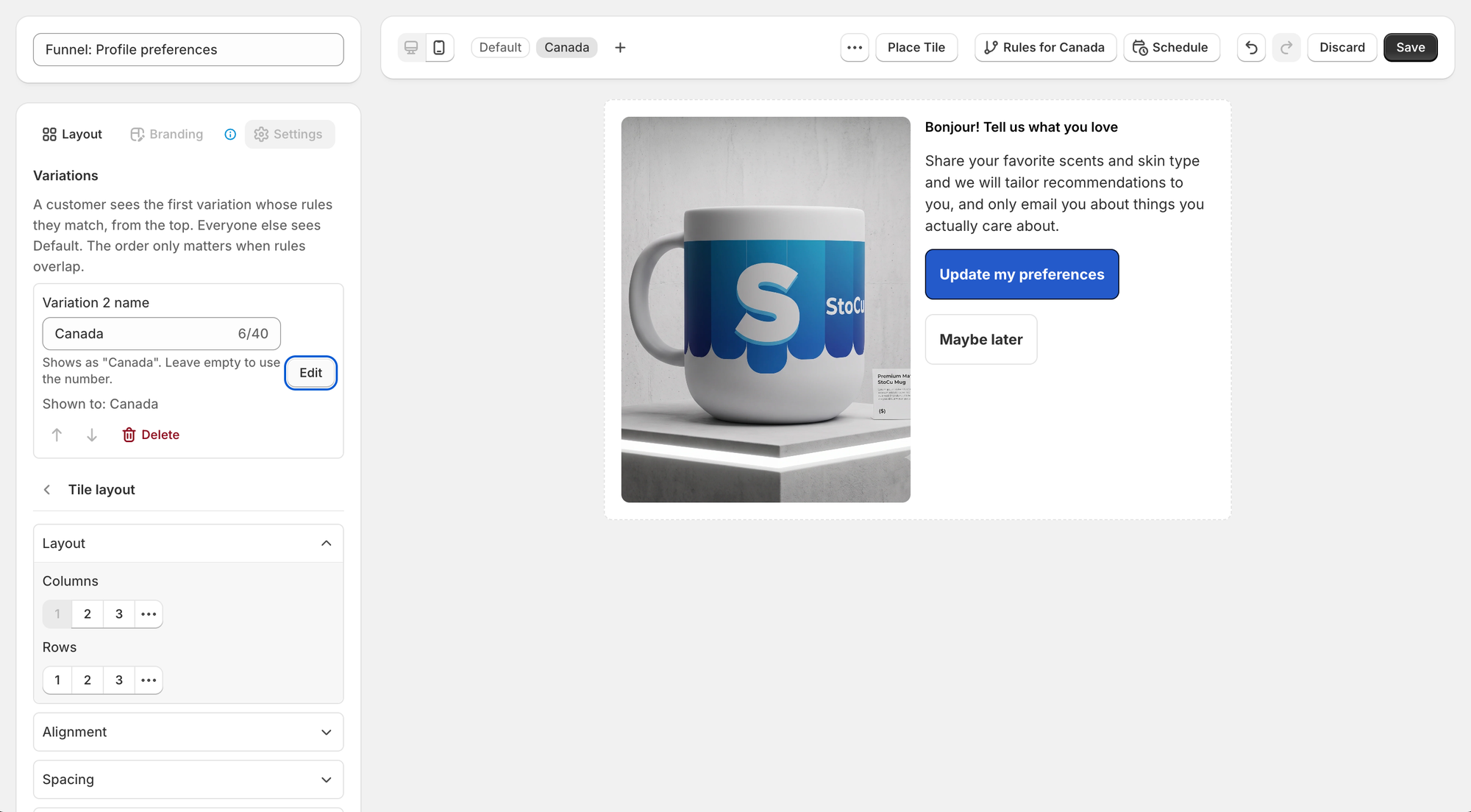
Open the Settings tab to see every variation in one list. Give each one a short name, such as Canada or Wholesale, and the pill and every label in the app use it. Leave the name empty to keep the number.
A customer sees the first variation whose rules they match, reading from the top. The order only matters when a customer could match two variations, for example a VIP who is also a wholesale buyer. Use the arrows to put the one that should win first. Delete removes a variation and leaves Default untouched.
Where variations show up in the app
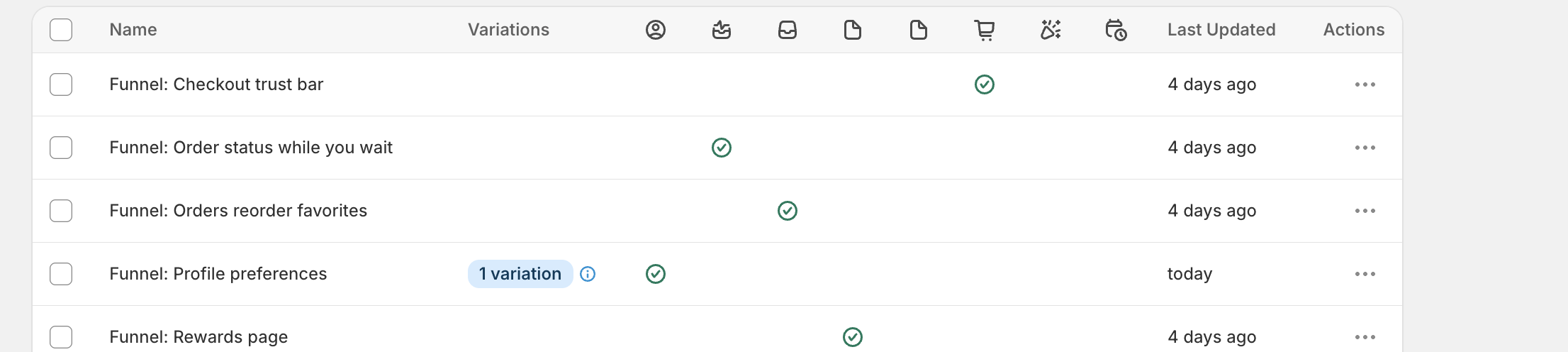
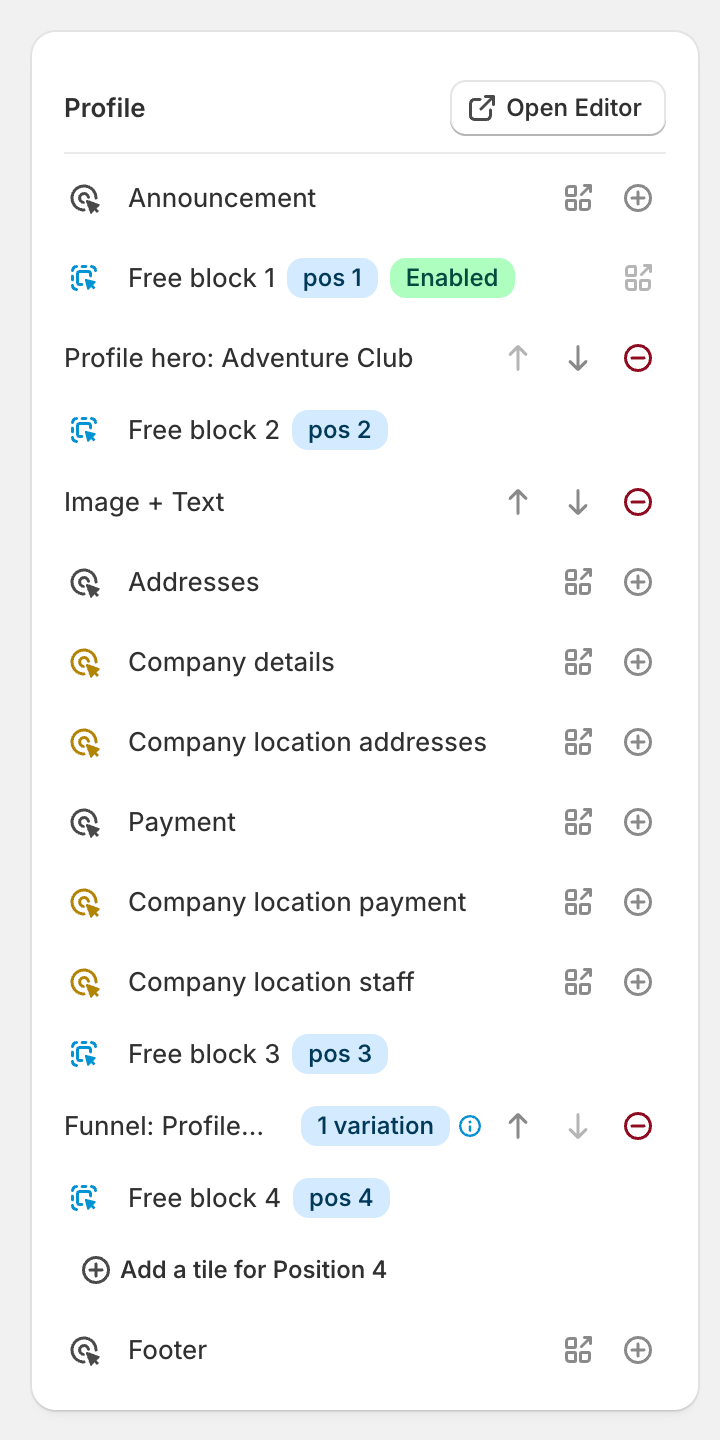
My Tiles has a Variations column, and each row in the Target Editor shows the same count next to the tile's name. Hover the small info icon to read who sees which version. If every variation is still paused, the badge turns yellow and says so.
Preview a variation in Shopify's editor
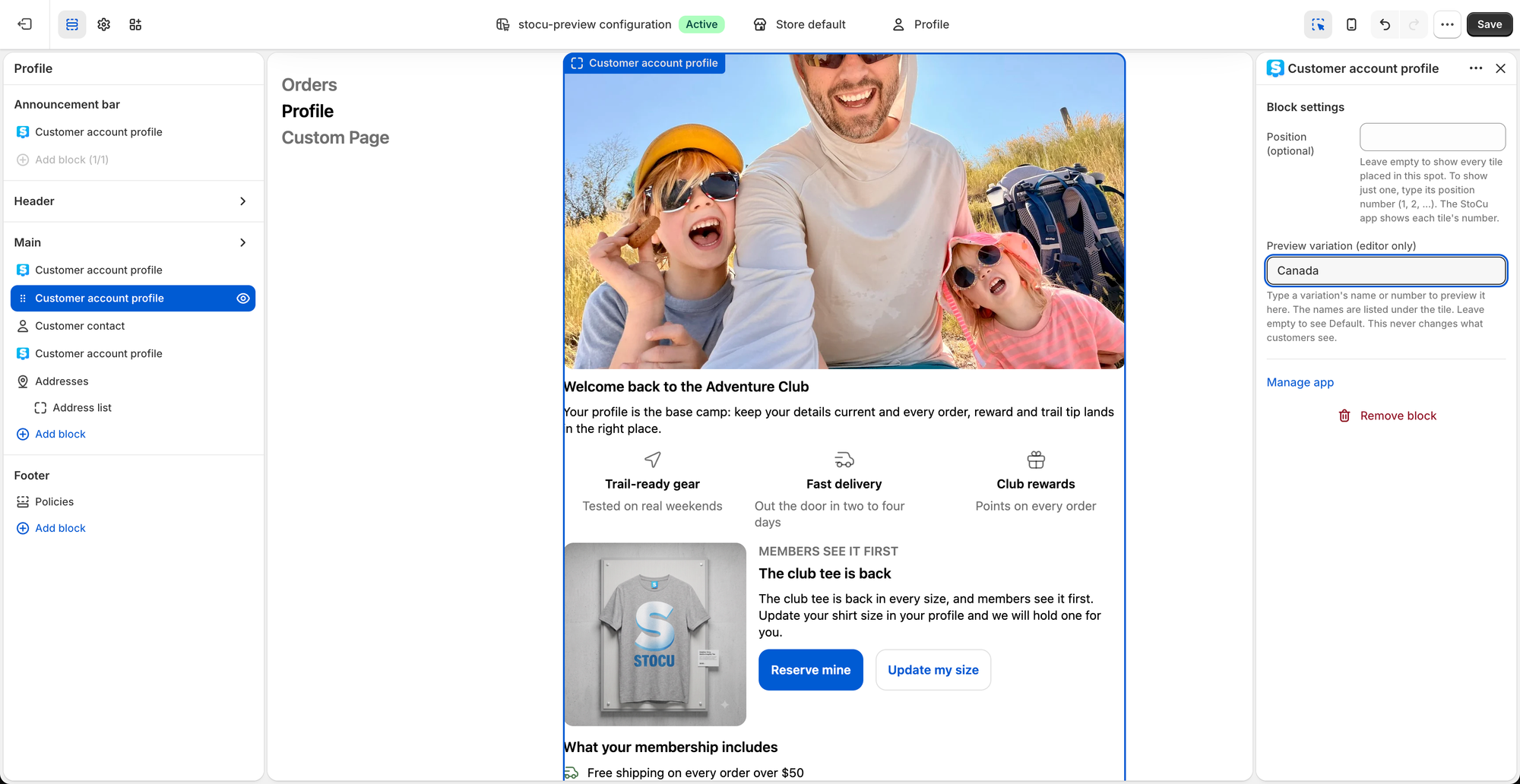
In Shopify's checkout and accounts editor you are not signed in as a customer, so the tile shows Default. To look at another version, click the StoCu block and type the variation's name or number under Preview variation (editor only). A small note under the tile lists the variations by name and tells you which one is showing.
The setting and the note exist only in the editor. They never change what customers see, and you do not need to clear the field before saving.
Good to know
- Variations follow rules only. There is no separate schedule for a variation; the tile's schedule covers all of them.
- Product cards keep the same products in every variation. Hide a card in a variation if it should not show there.
- A variation can replace a value but cannot empty it. To remove a line for one group, hide that element.
- Saving a tile as a template saves Default only.
- After you save, allow about a minute for customer pages to catch up.
Questions? Email me: team@storefrontcurator.com. I answer these myself.