Placement troubleshooting
Tile not showing? Run this checklist, top to bottom. The first item solves most cases.
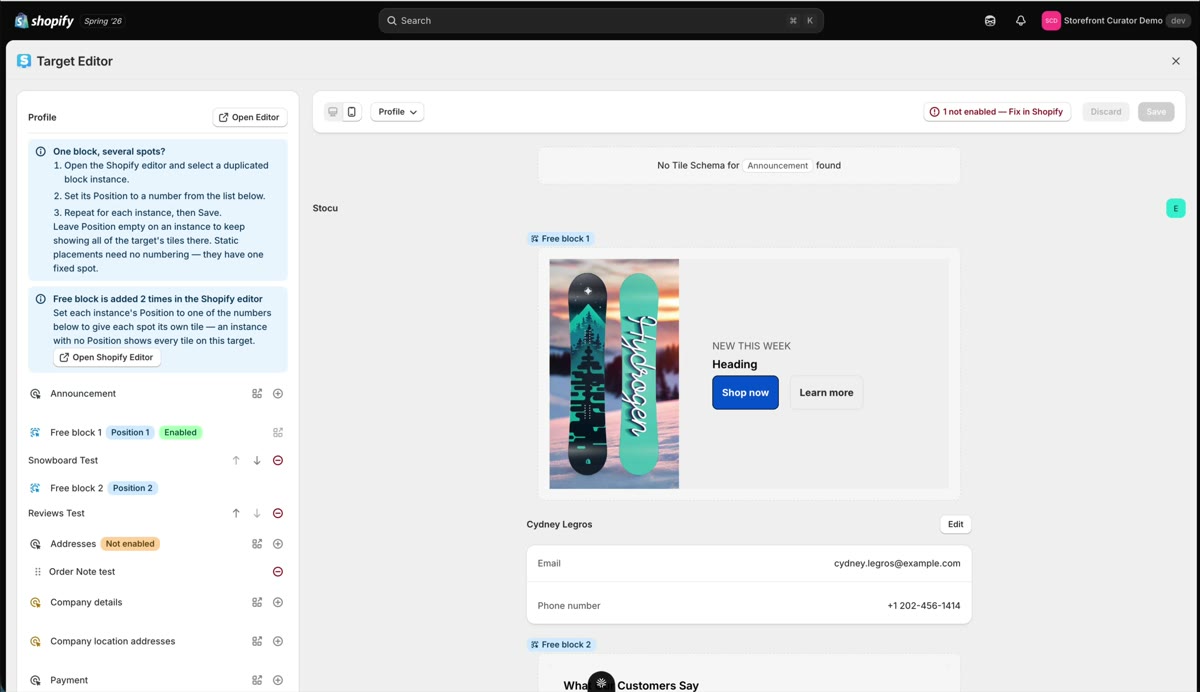
When a tile does not show, it is almost always one of six things. Check them in order.
1. Is the StoCu block on the page?
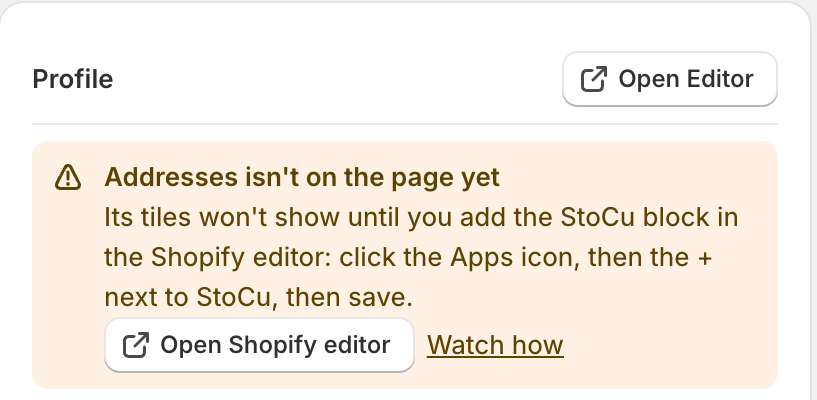
This is the number one issue I see, by a wide margin. A tile shows to customers only where the StoCu block has been added to that page in Shopify's editor. When it has not, the Target Editor shows a yellow message that names the spot, such as Addresses isn't on the page yet, and the button at the top right reads 1 not added in Shopify. Click Open Shopify editor, click the Apps icon, click the + next to StoCu, and save. When the top right reads All enabled, you are good.
2. Is your trial or plan approved?
You can build tiles without an approved plan, but nothing renders on the store until the trial or plan is approved on Shopify's billing page.
3. Is the tile actually placed?
Saving a tile stores it in your library. It renders only after you place it on a surface in the Target Editor. The placement overview under My Tiles shows what is placed where.
4. Is a display rule hiding it?
A tile with a rule shows only to customers who match. Note that Shopify's editor preview may not match your rule either, so the tile can be invisible in the editor while working perfectly. To truly test a rule, create a test customer that matches the criteria and log in as them. More in Display rules.
The same goes for variations: a customer sees a variation only when they match its rule, and a variation with no rule is paused. In Shopify's editor, type the variation's name under Preview variation on the block to look at it.
5. Is the same block on the page twice?
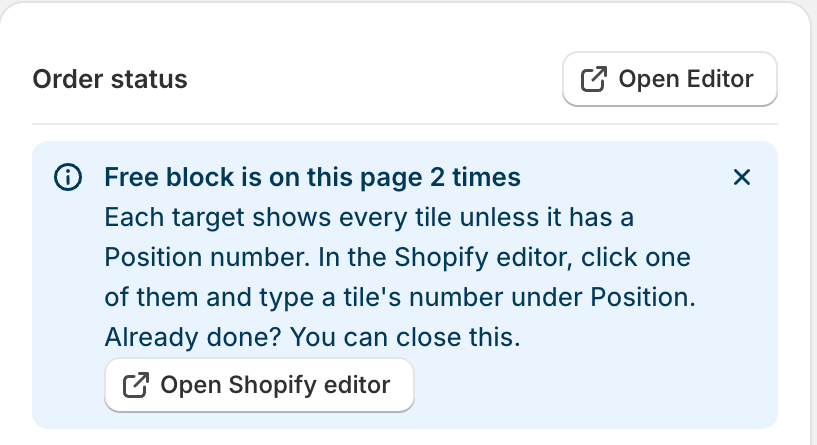
If you added the StoCu block to a page more than once, every copy shows every tile placed there, so tiles can appear twice or in the wrong spot. The Target Editor shows a blue message when it sees this. Give each copy a Position number in Shopify's editor, as described in Block positions. Once that is done you can close the message.
6. Understanding the placeholder block
If you see a block in Shopify's editor that says nothing is positioned in it, that placeholder is editor-only. Customers never see it. It is just letting you know the spot is available.
Still stuck? Email me: team@storefrontcurator.com. I answer these myself.