Brand library: share tiles between your stores
Run several stores under one brand? Group them, share a tile from one store, and open it in another as your own copy, products, pictures, links, variations and rules included.
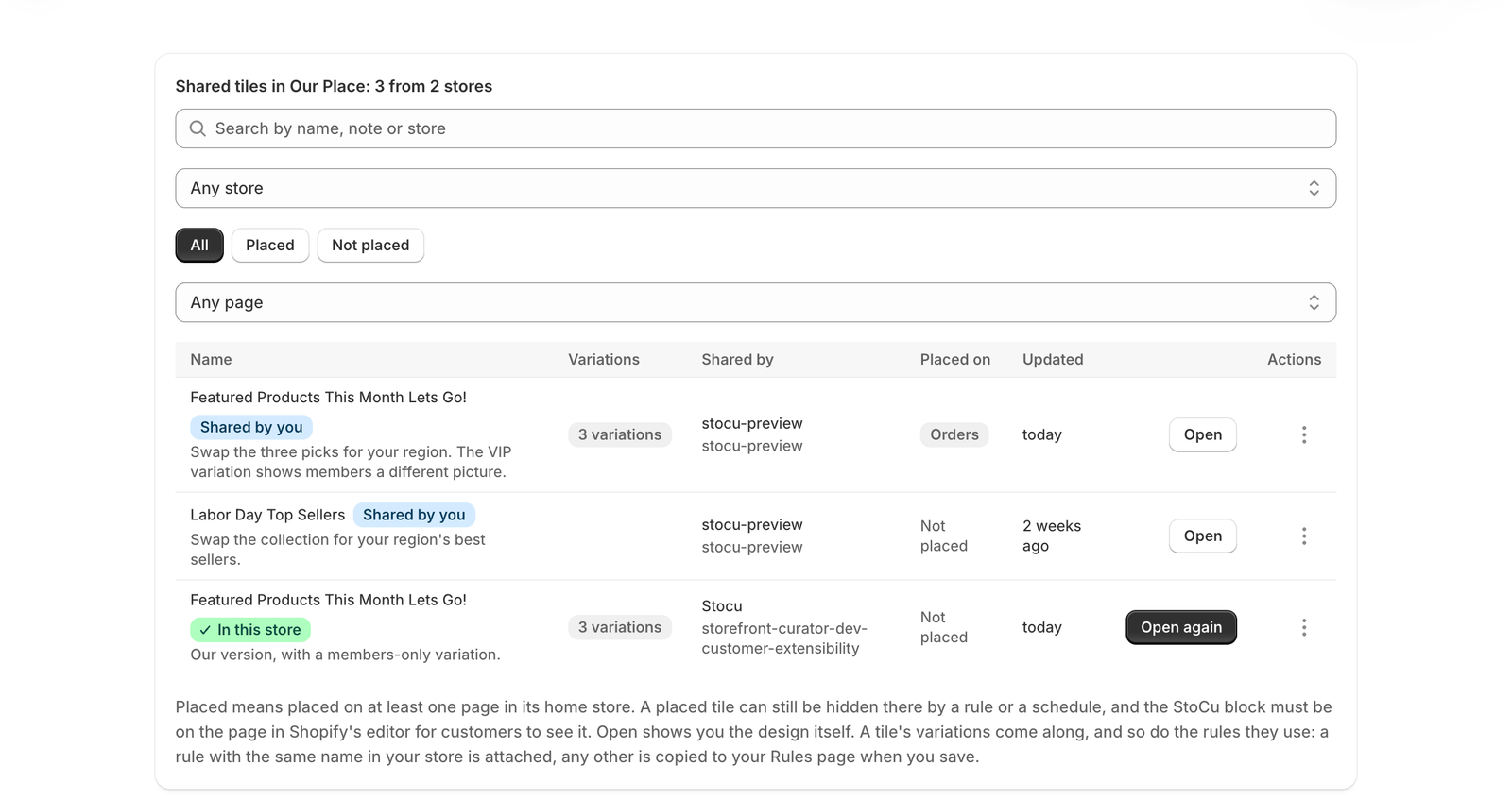
Many brands run more than one store: one per country, one for wholesale, one for a second line. Each store has its own StoCu, and until now a design built in one had to be rebuilt by hand in the others. The brand library changes that. You group your stores as a brand, share the tiles you want the other stores to have, and each store opens the ones it wants as its own copy to adjust and place.
Three things stay true the whole way through. Only a tile a store shares on purpose enters the library. Nothing lands in a store until someone there opens a shared tile and saves it. And no store can change another store's tiles, ever.
Start a brand
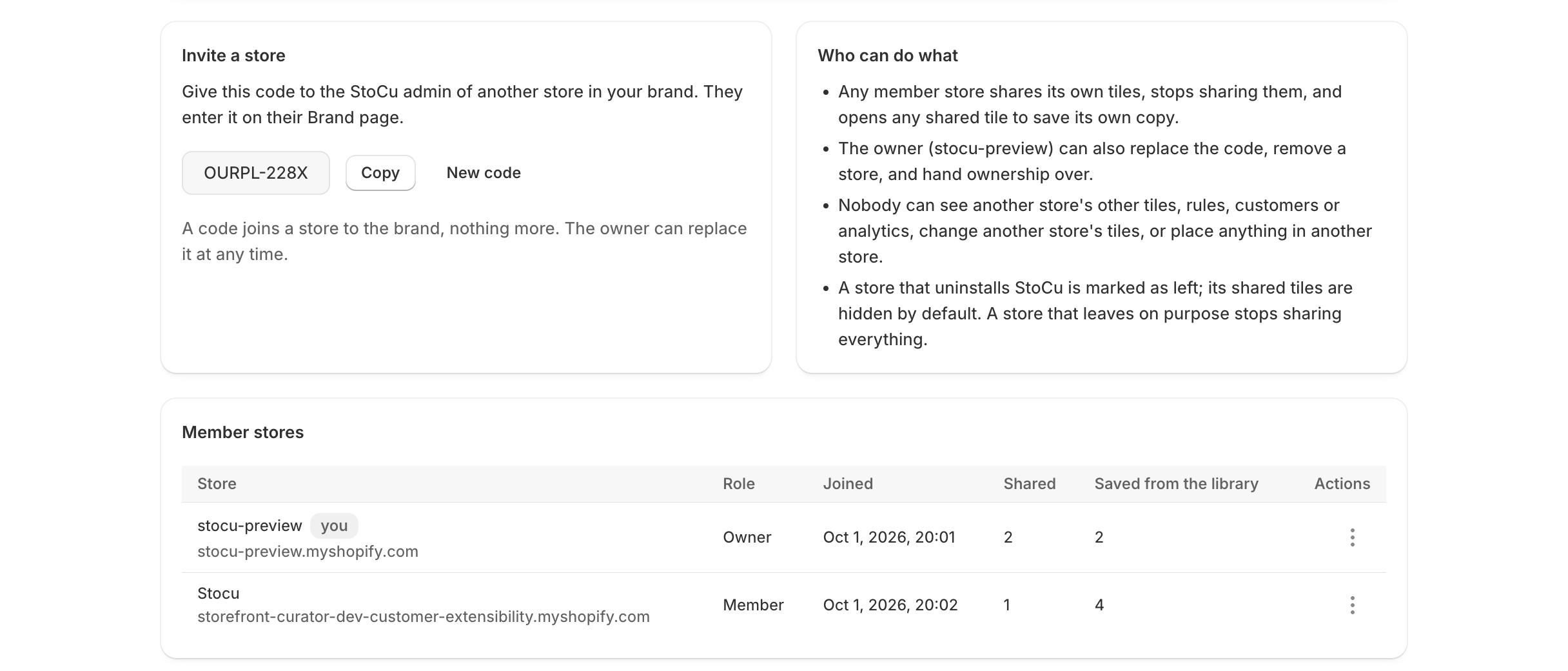
Open Brand in the StoCu menu of one of your stores and press Create a brand. Give it a name. StoCu makes an invite code, a short word and four characters, and that store becomes the brand's owner.
In each of your other stores, open Brand and press Join a brand with that code. Before anything happens, StoCu shows which brand the code belongs to, which store created it and how many stores are in it, so a typo cannot land you in the wrong place. A store can be in one brand at a time.
The code shows on every member's Brand page with a Copy button. The owner can make a new code at any time; the old one stops working at once and the stores already in the brand stay.
Share a tile
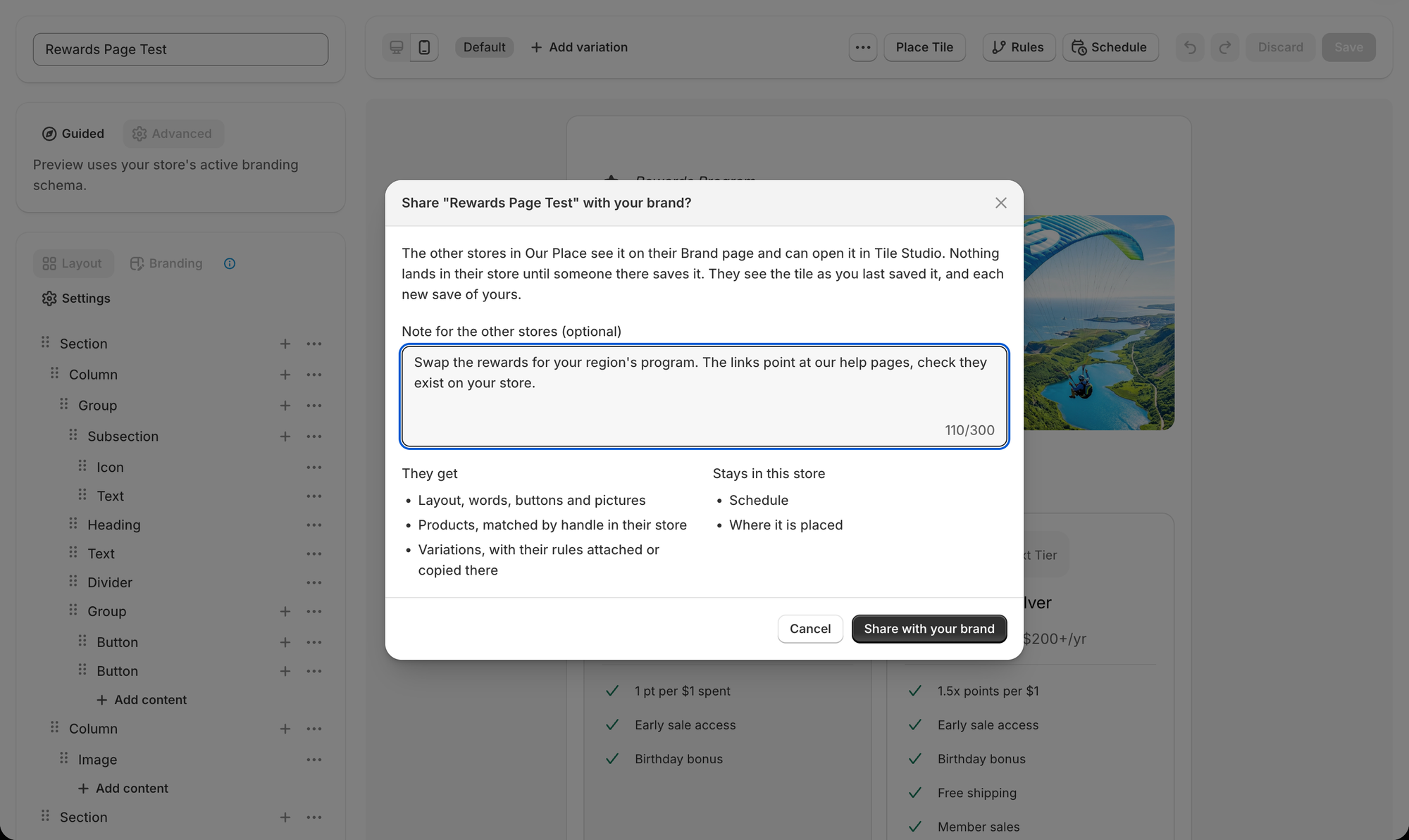
In Tile Studio, open the menu next to Save and choose Share with your brand. On My Tiles the same action sits in a tile's row menu. You can add a short note for the other stores, such as what to swap for their region. Press Share and the tile appears in the brand library.
Sharing is a switch on your own tile, not a copy of it. The library always shows the newest saved version, and Stop sharing takes it off the list without touching the copies other stores already made. On My Tiles a shared tile shows a check mark under Shared.
Find a tile
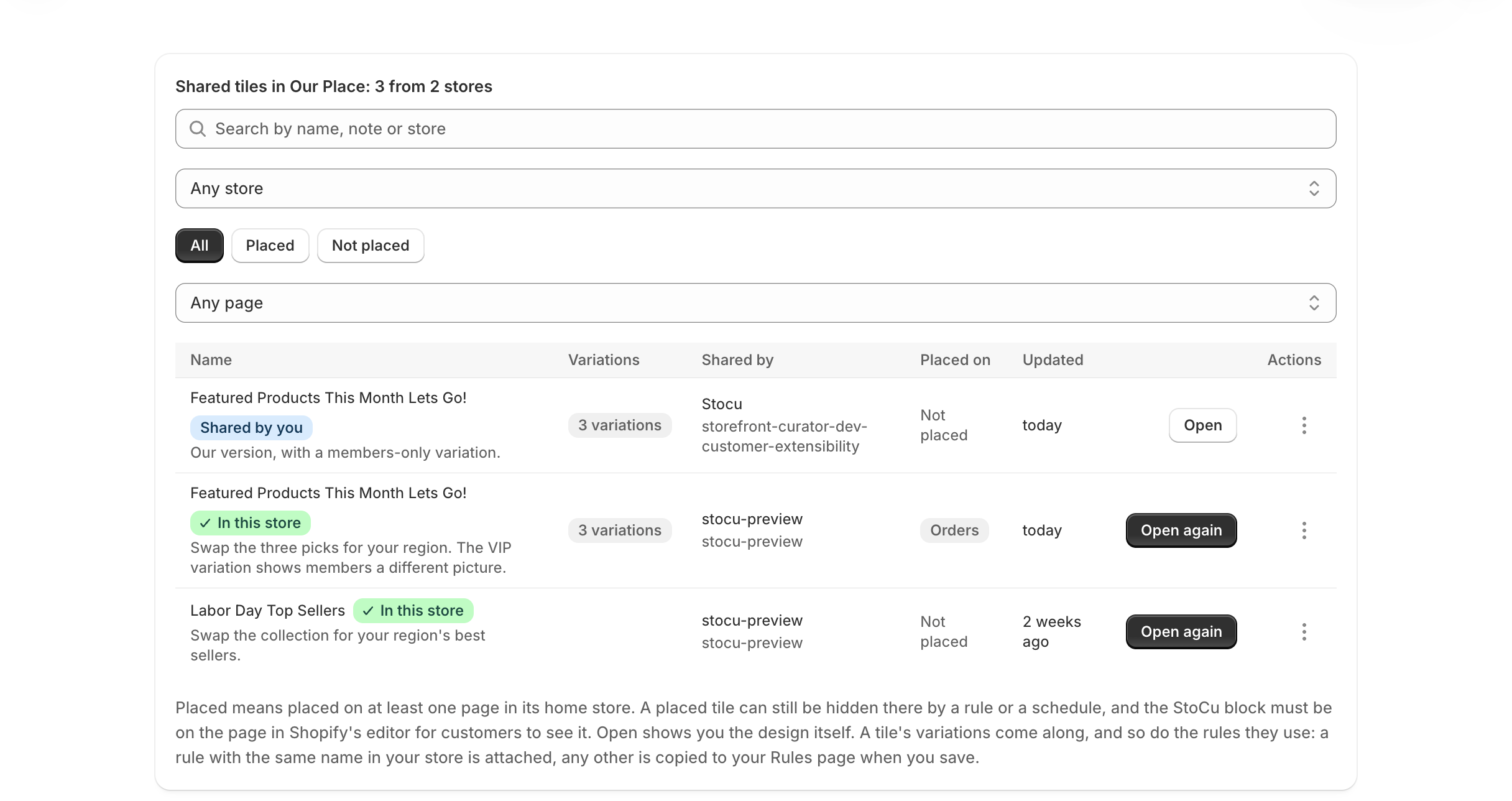
The Brand page lists every shared tile from every store in the brand: its name and note, how many variations it has, which store shared it, which pages it is placed on in its home store and when it was last updated. Search by name, note or store, or filter by store, placed or not, and page. A tile you already opened and saved here shows In this store, and you can open it again for a fresh copy.
Open a tile in your store
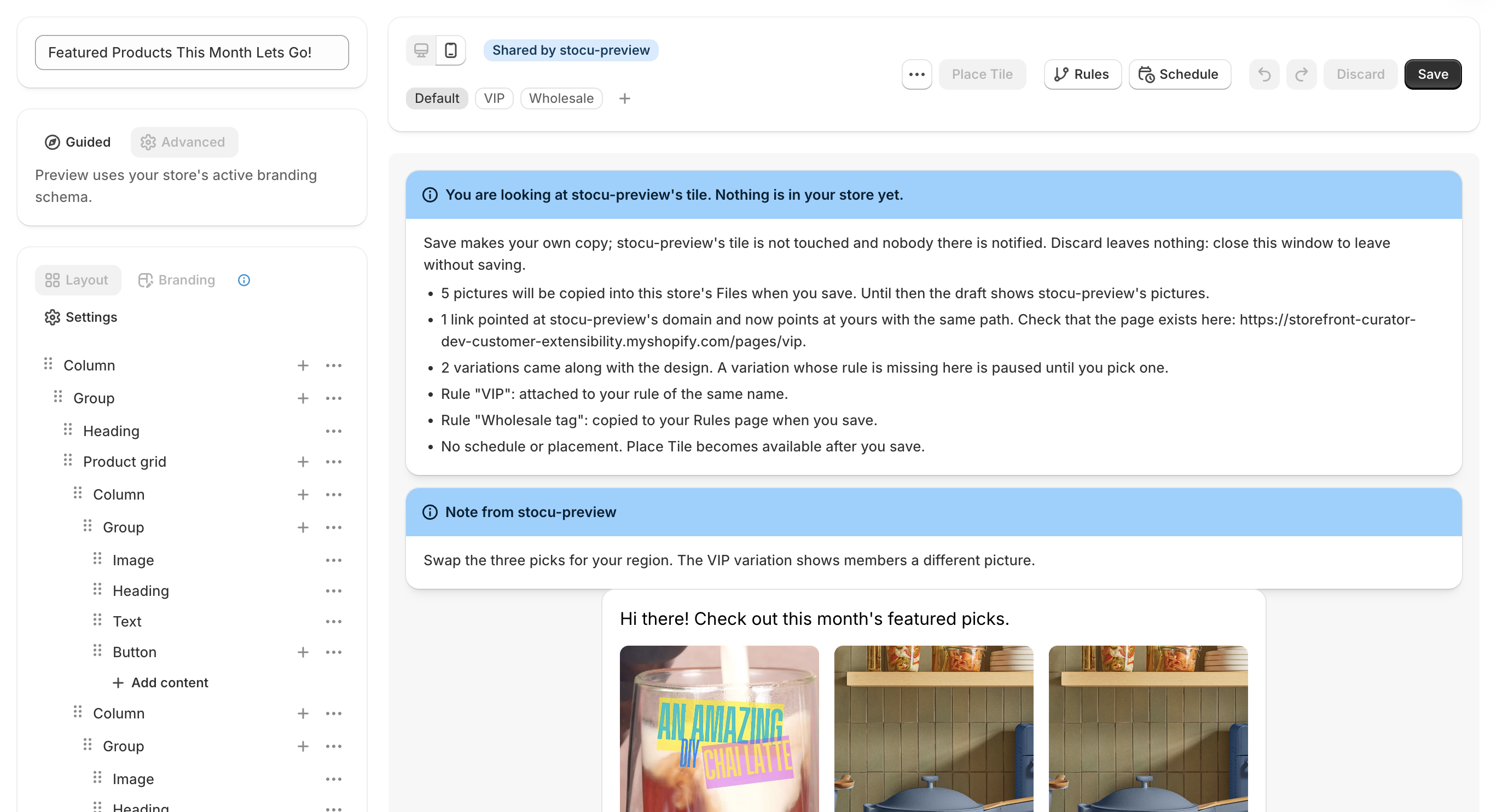
Press Open and the tile opens in Tile Studio as a draft for your store. A banner at the top says whose tile you are looking at and what StoCu did to make it fit your store:
- Products and collections are matched by handle. A product with the same handle in your catalog is bound in place with your prices and links. One that is not becomes a placeholder card, ready for the Products panel. Collection grids work the same way.
- Pictures are copied into your store's Files when you save. Until then the draft shows the other store's pictures.
- Links that point at the other store's domain are moved to yours with the same path. The banner lists them so you can check the page exists here.
- Variations come along, with their changes. A variation whose rule could not be matched here is paused until you give it one, so it never shows to the wrong customers.
- Rules are attached or copied. A rule with the same name in your store is attached, which is how a brand keeps "English" meaning the right thing in each country. Any other rule is copied to your Rules page when you save, with a note of where it came from. A rule built on a customer segment or a product is matched here by name or handle; if there is no match, the Rules page shows a caution icon on the copy until you open it and choose one.
- Schedule and placement do not come along. Place Tile becomes available after you save.
Nothing is in your store yet. Save makes your own copy; close the window to leave without one.
After you save
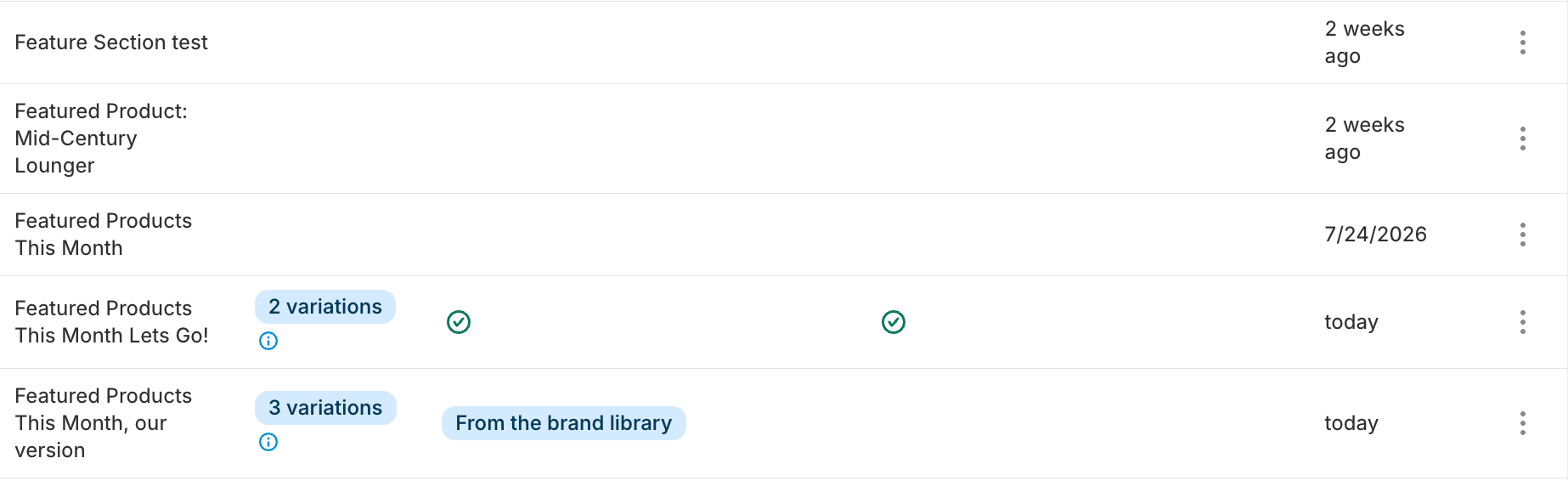
The copy is an ordinary tile of yours. It shows From the brand library on My Tiles, and you edit, place, schedule and give it rules like any other. Your changes never reach the store that shared it, and later changes there do not reach your copy. If the sharing store improves a design, open it again from the Brand page for a fresh copy.
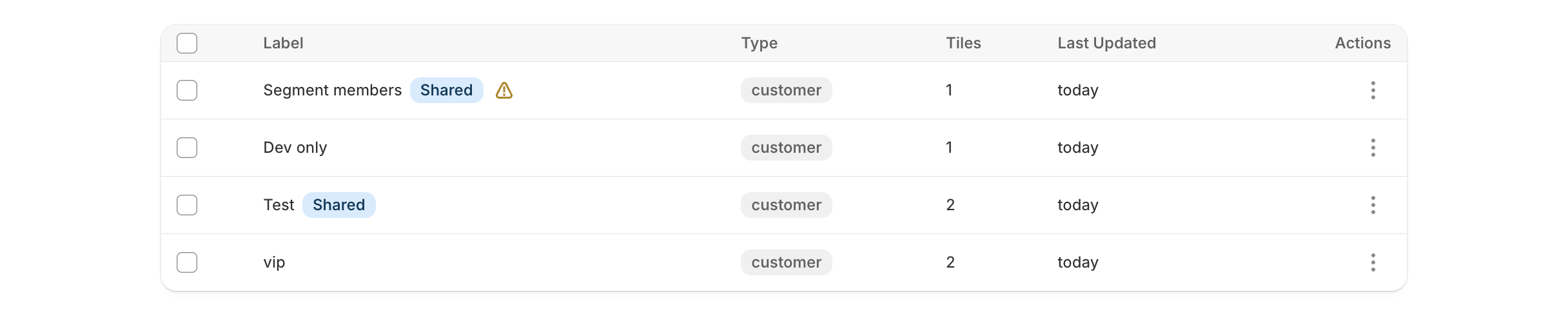
Rules copied with a tile show a Shared badge on your Rules page, and the rule editor says which store they came from. Edit them freely; the other store's rule is not touched.
Who can do what
- Every store in the brand can share its own tiles, stop sharing them, and open any shared tile.
- The owner, the store that created the brand, can make a new invite code, remove a store, and hand ownership to another store.
- Any store can leave from its Brand page. Leaving stops sharing its tiles; the copies other stores made stay. The owner hands over first if other stores remain. The last store to leave closes the brand.
- A store that uninstalls StoCu shows as Store left in the members list, and its shared tiles are hidden unless you choose to see them.
With an assistant
An assistant connected to StoCu, such as Claude Code or Claude.ai, can list the brand library, preview a shared tile in your store's branding and save the copy for you, with the same matching, copying and rule handling as the Brand page. See Build tiles with an assistant.
Good to know
- Every store in the brand needs StoCu installed. Billing is per store and does not change.
- The brand library works on every plan, Shopify Plus or not.
- The invite code is the only way in. There is no automatic grouping, so nobody outside your brand can see your tiles.
- Variations are covered in Tile variations and rules in Display rules.
If you run several stores and would like me to group them for you, write to me from the Help page in StoCu and name the stores. I will set the brand up and send you the code.