Connect your own AI assistant
Connect Claude or ChatGPT to StoCu, approve it once in your Shopify admin, and disconnect it whenever you like.
Sidekick builds tiles from inside your Shopify admin. This is the other way to work with AI: connect the assistant you already use, such as Claude or ChatGPT, and build tiles from wherever you work, with your own files, briefs and images at hand.
What you need
- StoCu installed, on a plan or in your trial.
- An assistant that can connect to outside tools. Claude Code, Claude.ai (Pro, Max, Team or Enterprise) and ChatGPT (with Developer mode on) all can.
Open the Assistants page
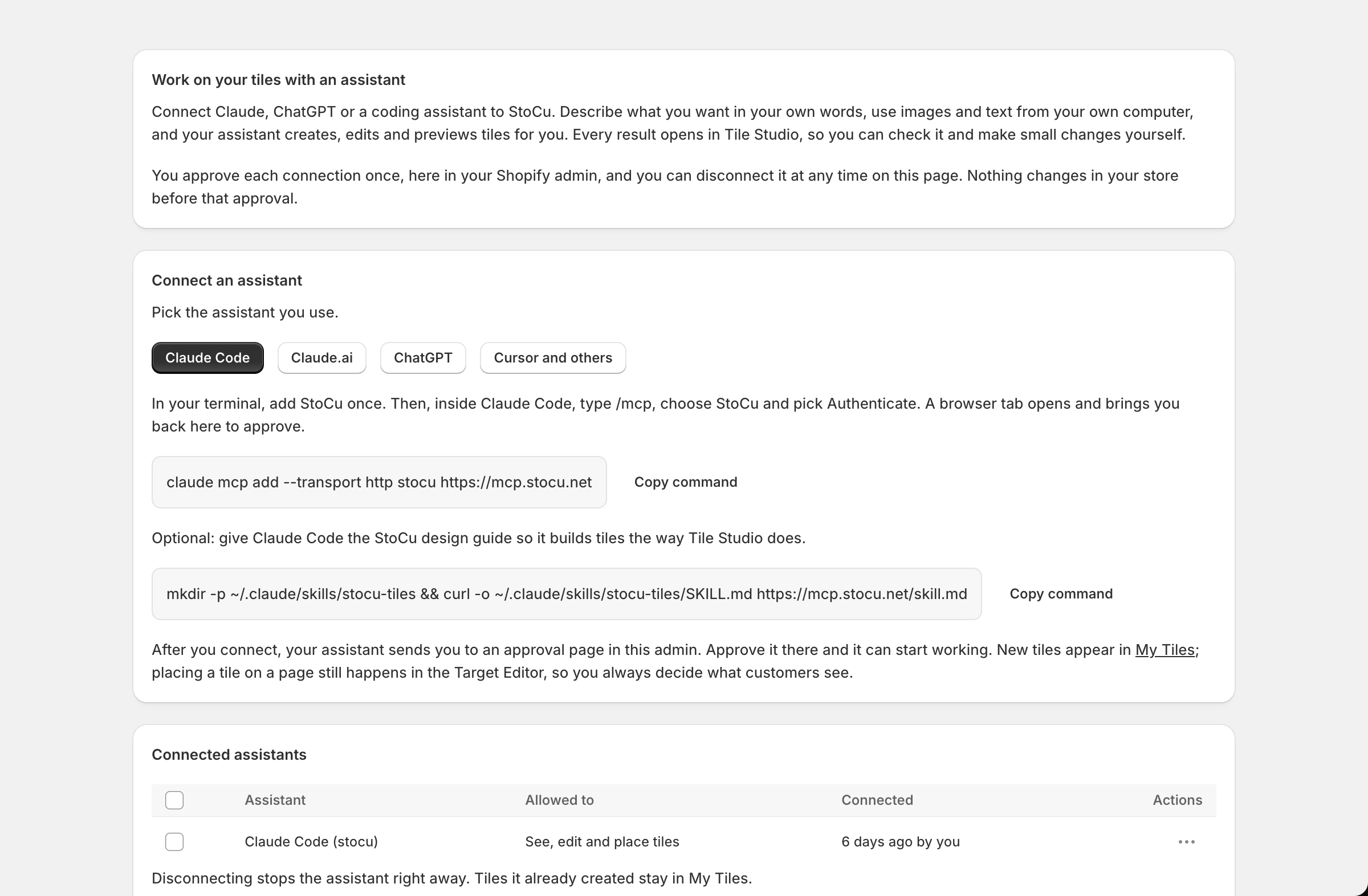
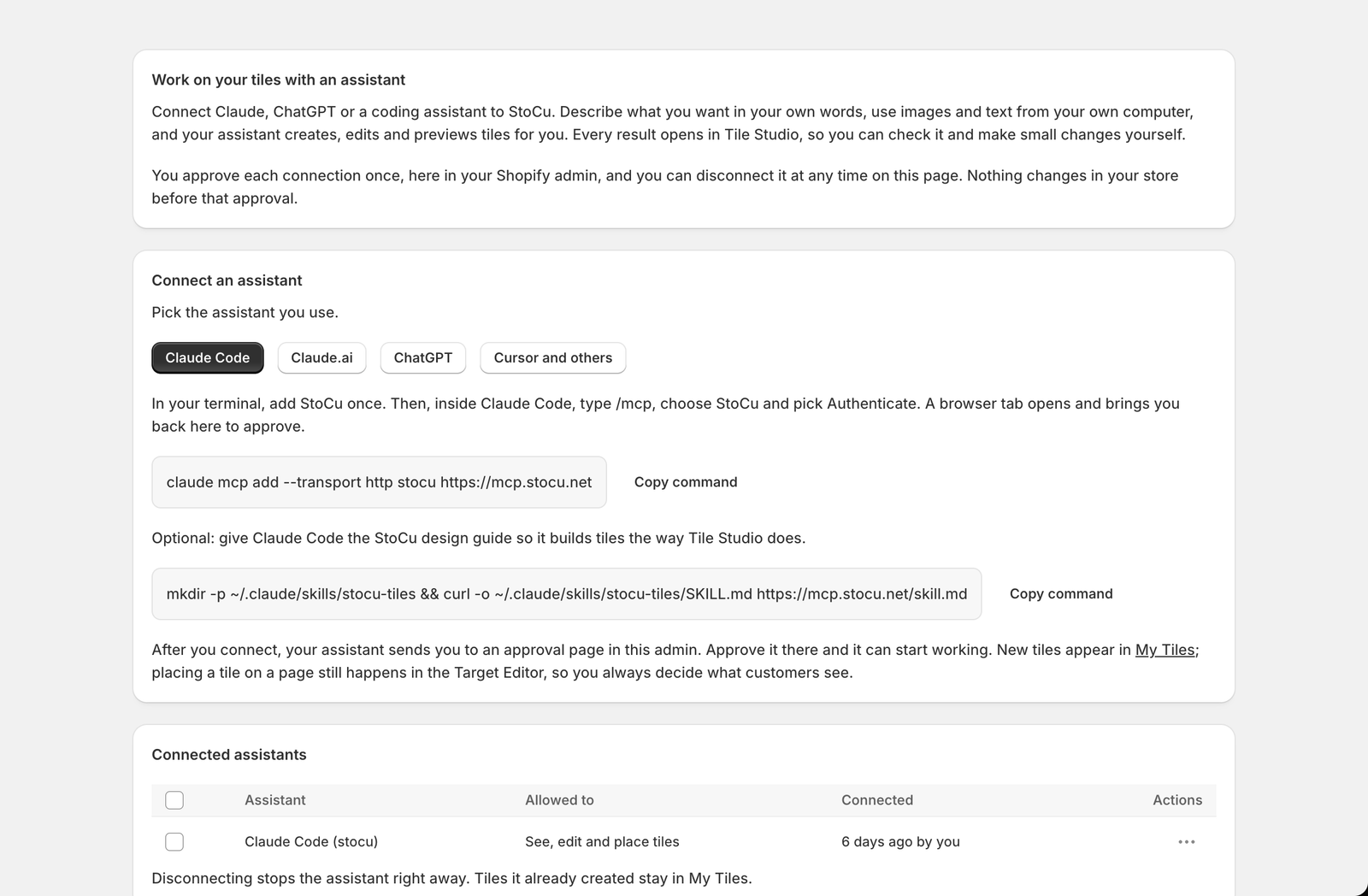
In the StoCu app, open Assistants in the menu. Pick your assistant at the top and follow the short steps for it. Every step has a copy button. They all use the same address:
https://mcp.stocu.net
Claude Code
Run this once in your terminal:
claude mcp add --transport http stocu https://mcp.stocu.net
Then, inside Claude Code, type /mcp, choose StoCu and pick Authenticate. If you added StoCu while Claude Code was already open, restart it first so it sees the new connection.
Running StoCu from a job that runs on its own, or from several Claude Code windows at once? Use a key instead of signing in, see Use a key instead of signing in below.
Claude.ai
Open Settings, then Connectors, then Add custom connector. Name it StoCu, paste the address and press Connect.
ChatGPT
Open Settings, then Connectors, then Advanced, and turn on Developer mode. Create a connector named StoCu with the address and choose OAuth for authentication.
Cursor and others
Any assistant that supports remote MCP servers with sign-in can connect. Add a server with the address above.
Approve it in your Shopify admin
When the assistant connects, a browser tab opens and asks for your store's address. It then takes you into your own Shopify admin, where StoCu shows what the assistant is asking for: to see your tiles, to edit them, and to place them. Click Approve, or Decline if you did not start this. A request stays open for ten minutes; if it runs out, start again from your assistant.
You approve each assistant once. Any staff member who can open StoCu can approve one, and the Assistants page records who did. If your assistant keeps asking you to sign in again, a key is the steadier choice, see below.
Disconnect at any time
Every connection is listed under Connected assistants with what it may do and who approved it. Open its actions and choose Disconnect. The assistant stops working on your store right away. Tiles it already made stay in My Tiles. Uninstalling StoCu disconnects every assistant as well.
Use a key instead of signing in
A signed-in assistant asks you to sign in again from time to time. That is fine while you work, but it gets in the way in two cases: a job that runs on its own, such as a script that updates a banner every morning, has nobody there to sign in; and two copies of the same assistant sharing one sign-in, such as the job and your own Claude Code, can sign each other out. A key fixes both. It keeps working until it is revoked, and any number of jobs and windows can use it at once.
On the Assistants page, under Keys, click Create key. Give it a name you will recognize later, such as "Laptop" or "Daily promo banner", and choose what it can do:
- See, edit and place tiles, for your own tools and for jobs that change tiles.
- See tiles, for reports and checks. It cannot change anything.
StoCu shows the key once. Copy it and keep it where your assistant or job can read it, for example as STOCU_KEY in its environment. Then add StoCu with the key in place of signing in. For Claude Code:
claude mcp add --transport http stocu https://mcp.stocu.net --header "Authorization: Bearer $STOCU_KEY"
The page also gives you the same settings for a project's .mcp.json file. Other assistants work too when they let you add a header to a remote MCP server: send Authorization: Bearer followed by the key.
A few things to know:
- Treat a key like a password. Anyone who has it can do what the key allows.
- Each key belongs to the person who made it, and each person can have five. The store owner sees every key and can revoke any of them.
- A key works only on the store where it was made. If you run several stores, make one in each.
- The Keys table shows when each key was last used. Click Revoke and anything using the key stops on its next call; tiles it already changed stay as they are. Uninstalling StoCu revokes every key.
- StoCu cannot tell when someone stops working on your store, so their keys keep working until you revoke them.
- Claude.ai and ChatGPT connect by signing in only. Keys are for Claude Code, scripts and other tools that let you set a header.
Optional: give your assistant the StoCu design guide
The design guide teaches an assistant how tiles are put together, so its first draft looks like something Tile Studio would make. The Assistants page has a one-line command that installs it for Claude Code. For other assistants, share this link with it: mcp.stocu.net/skill.md.