Block positions: pin tiles to exact spots
Free blocks vs static blocks, and how the Position number maps each tile to its exact spot on the page.
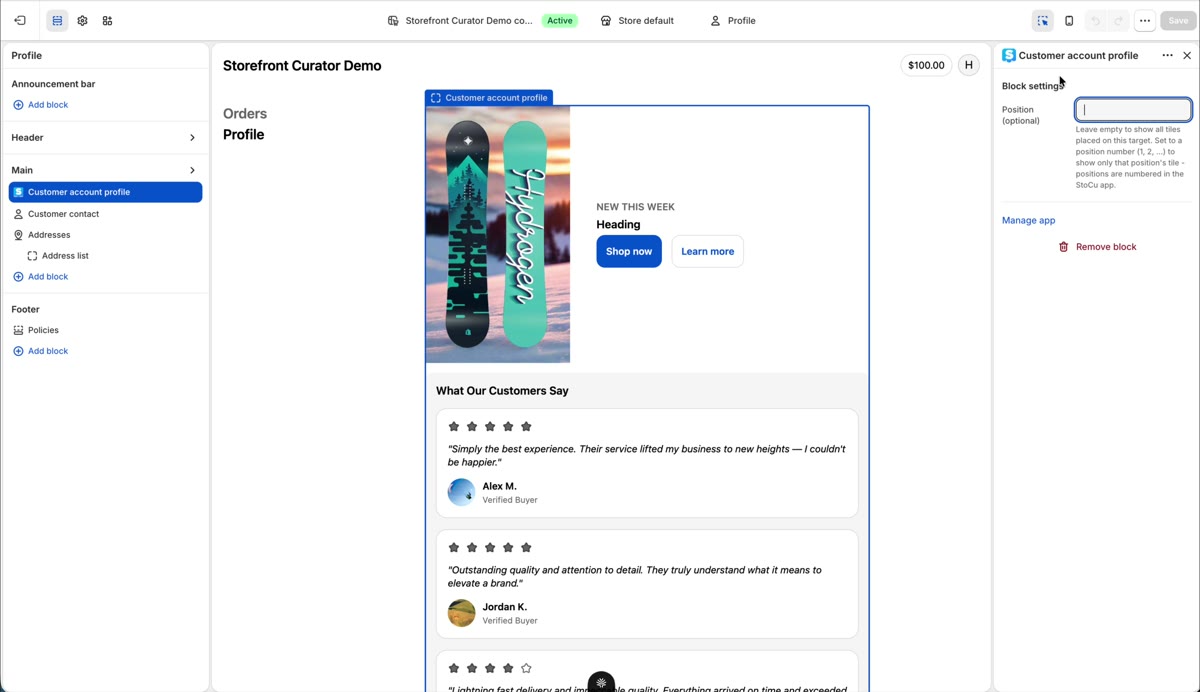
This is the power feature behind precise page layouts: different tiles pinned to different spots on the same page. It rests on one distinction.
Free blocks vs static blocks
Shopify builds its customer account and checkout pages from two kinds of block slots. Free blocks can be dragged anywhere on the page and carry a Position number. Static blocks are attached to a fixed page area and have no Position. StoCu names them accordingly in the Target Editor.
If you have exactly one free block on a page, skip the rest of this article: you never need to set a Position at all.
The Position rule
With multiple placements, each free block instance shows all tiles placed on that page unless you tell it otherwise. The rule: a tile set to Position N renders only in the block instance set to Position N. Give your first tile Position 1 and your second Position 2, and each pins to its own spot.
Mapping both sides
The Position lives in two places: on the tile placement in StoCu's Target Editor, and on the block instance in Shopify's editor. Add a second block in Shopify's editor, drag it where you want, set it to free block two, and save. Both tiles now render exactly where you put them, and the Target Editor preview matches the live page one to one.
Static blocks stay simple the whole time: drag them to their area, no numbers involved.
The Target Editor tells you
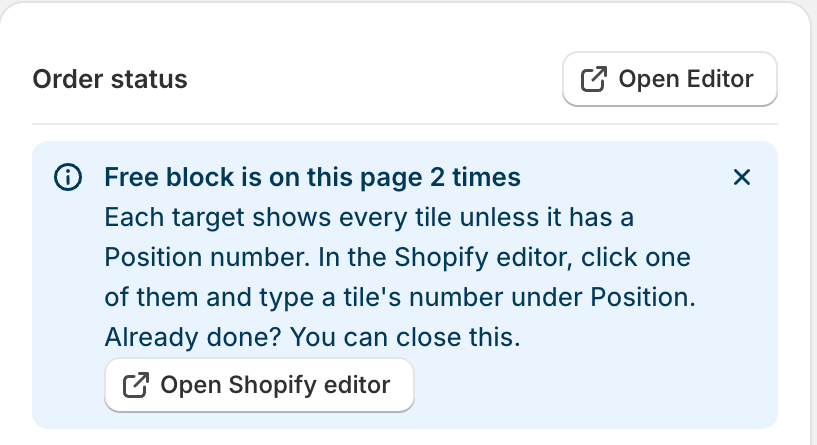
When the free block is on a page more than once, the Target Editor shows a blue message saying so, with a button that opens Shopify's editor. It cannot see whether you have already typed the Position numbers, so once you have, simply close it. It comes back only if you add another copy.
The other block setting: Preview variation
Under Position you will find Preview variation (editor only). It matters only for tiles with variations: type a variation's name to look at it in the editor. It never changes what customers see.