Language and country rules
Show a tile, or a variation of it, by the language or the country a customer is shopping in.
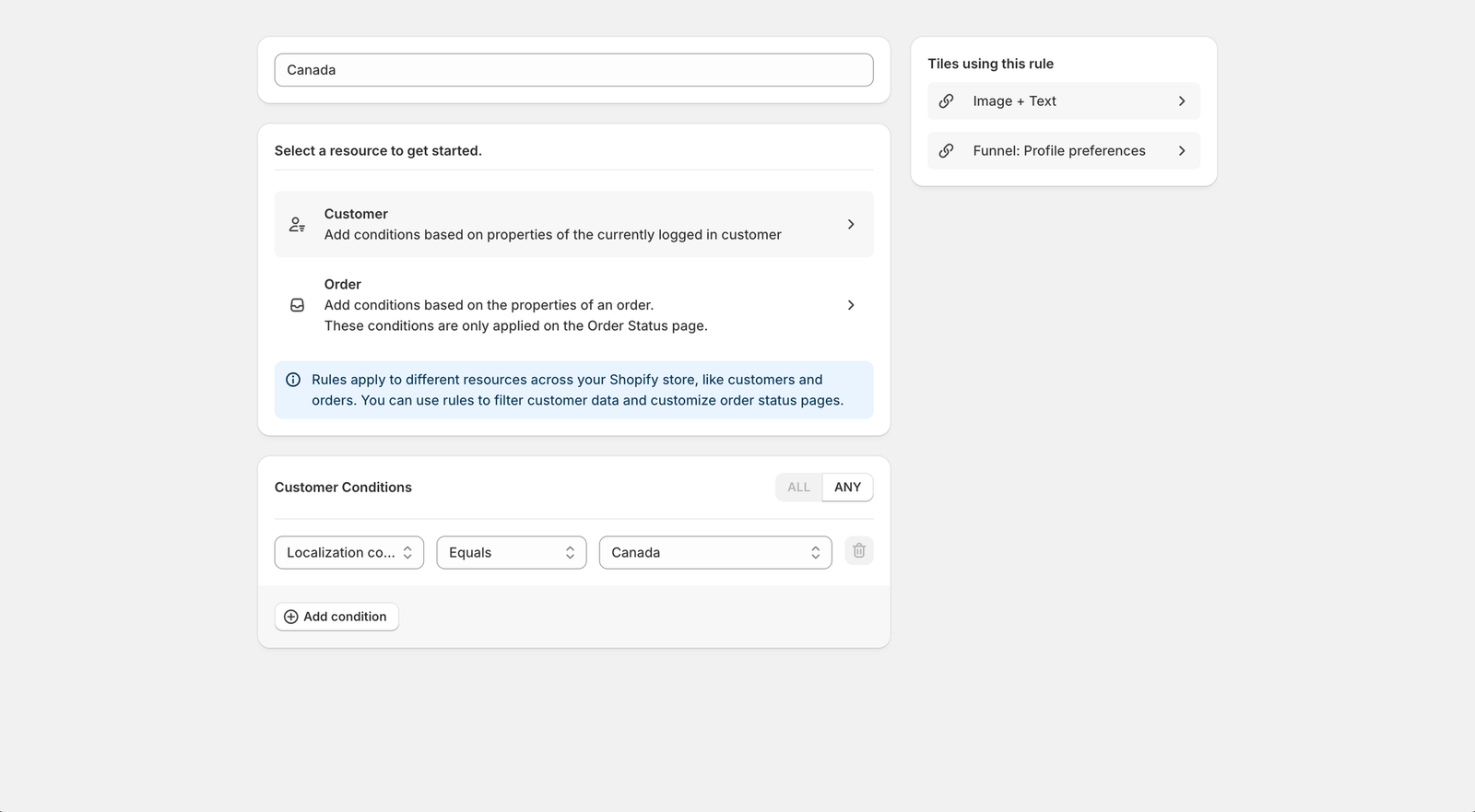
If you sell in more than one language or country, a display rule can match the language or the country the customer is shopping in. Use it on a whole tile, or on a variation so one tile greets each group in its own words.
Create the rule
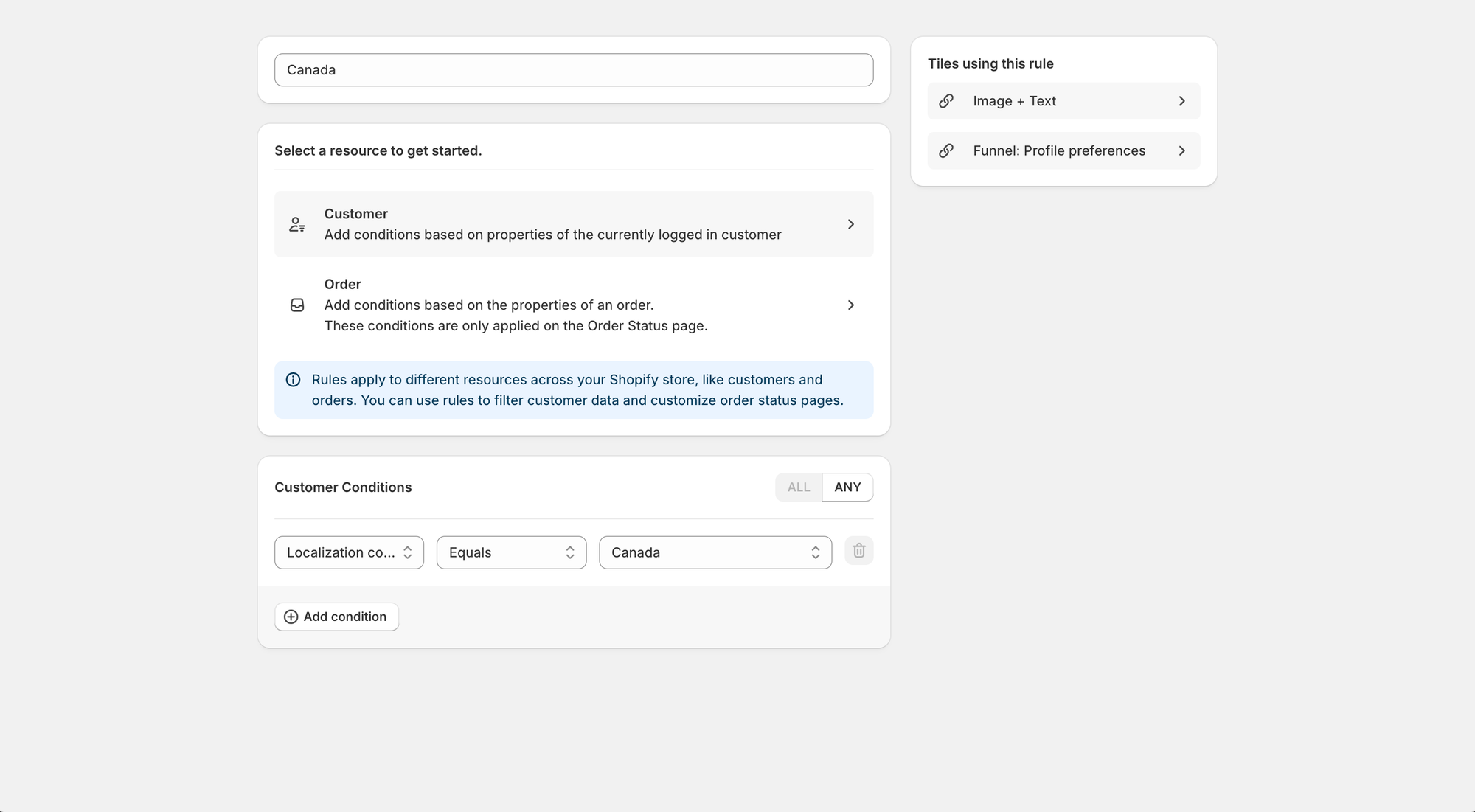
Open Rules and click Create rule. Choose Customer, then under Select Property pick Localization language or Localization country. Set the operator to Equals and pick a value from the list.
- The language list shows the languages your store has published in Shopify (Settings, then Languages).
- The first time you open it, Shopify asks you to approve one extra permission so StoCu can read your store's languages. Approve it and the list fills in. Until then the page tells you why the list is empty.
- The country list is every country.
How matching works
- A language matches its regional versions too. French matches French, French (Canada) and French (France).
- Pick a regional version, such as French (Canada), when you want that region only.
- A rule cannot be saved with an empty value. An empty rule matches nobody, which used to hide the tile for everyone.
An example: one greeting, two languages
Build the tile in English as Default. Add a variation, name it French, rewrite the words, and give it a rule where Localization language equals French. English shoppers see Default and French shoppers see the French version, in one spot on the page.
Checking your work: open your customer account pages in the other language (add ?locale=fr to the address, or use your store's language switcher) while signed in as a test customer. Allow about a minute after saving a rule before you look.Questions? Email me: team@storefrontcurator.com.