Display rules: the right tile for the right customer
Show tiles by customer tags, segments, spend, and more. Build the rule once, attach it to any tile.
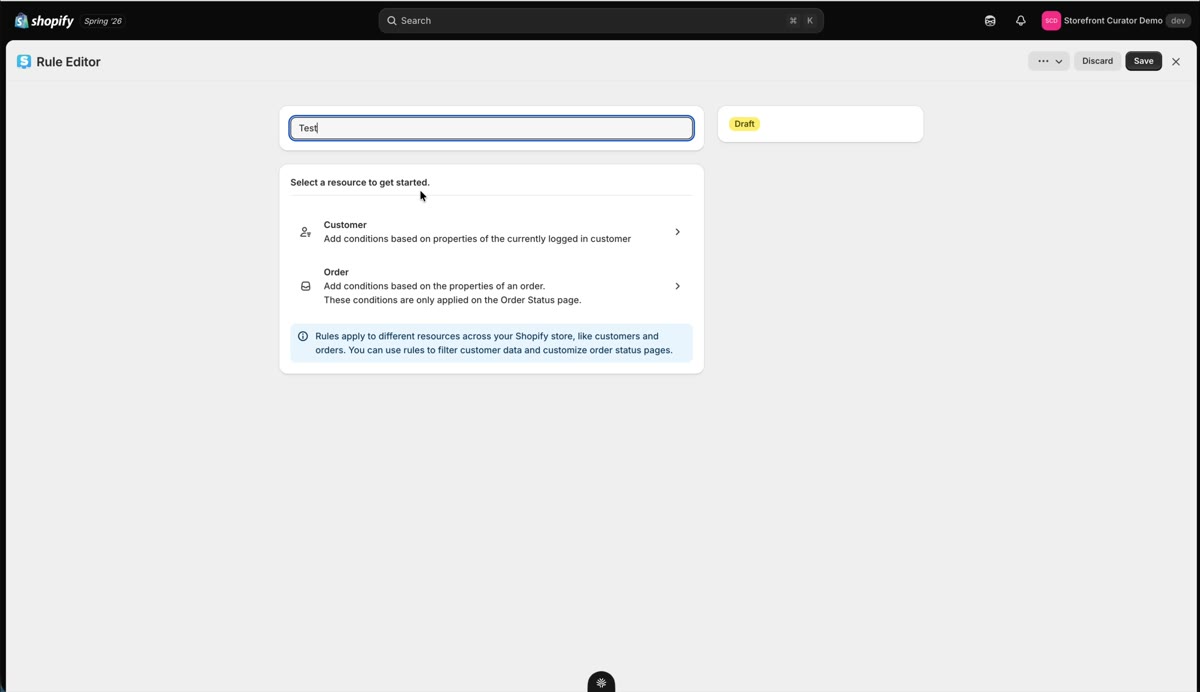
Display rules decide who sees a tile. Build a rule once and attach it to as many tiles as you like.
Create a rule
Open Rules in the left navigation and click Create rule. Customer rules match properties of the logged-in customer, with all-or-any logic across conditions: tags (say, contains VIP; matching tags autocomplete as you type), metafield values, amount spent, number of orders, Shopify segments, whether the customer is buying for a company (B2B), and their subscription status.
Rules can also match the language or country a customer is shopping in. That has its own guide: Language and country rules.
A condition needs a value. StoCu will not save a rule with an empty one, because an empty rule matches nobody and would hide the tile from everyone.
Segments need exact names
Segment conditions reference your Shopify customer segments, and the name must be typed exactly as it appears under Customers, then Segments in your admin. Copy it from there if in doubt. The rules list shows an in-use column so you always know which rules are live on tiles.
Show a tile only to B2B customers
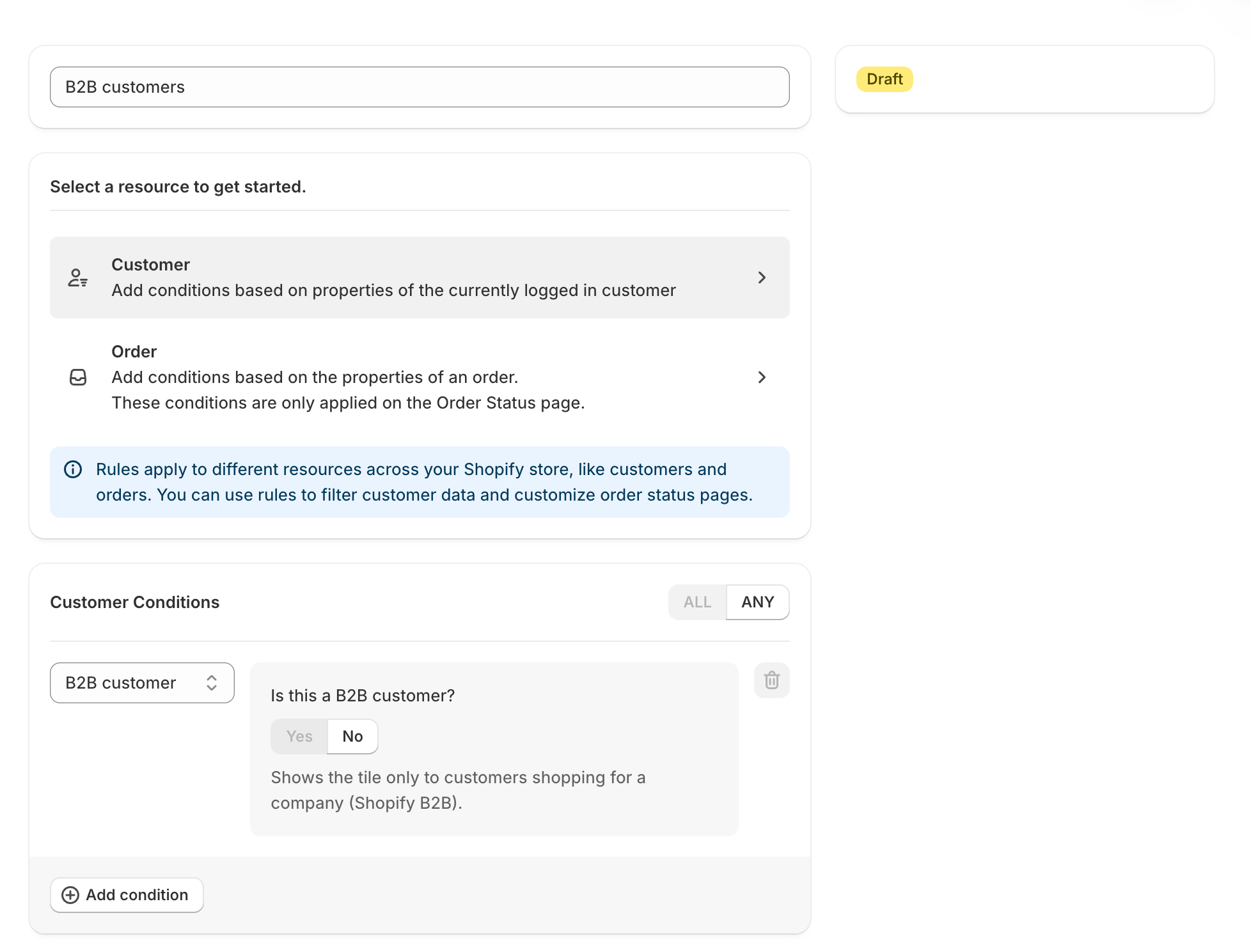
Pick the B2B customer property and the condition becomes one question: "Is this a B2B customer?" Answer Yes to show the tile only to customers who are signed in and buying for a company through Shopify B2B. Answer No to show it to everyone else, which suits a consumer offer your wholesale buyers should not see.
The answer comes straight from Shopify, so there is nothing to set up in your store: no metafield to create and no tag to keep current. It works on every page a tile can sit on, including checkout and the thank you page on Plus stores, and it updates on the spot if a customer switches company in their account. One detail worth knowing: a company contact who chooses to place a personal order does not count as B2B for that visit, which matches the prices and catalog Shopify shows them. An assistant connected to StoCu can create the same rule by asking for the B2B customer property with the answer yes or no.
Show a tile to subscribers
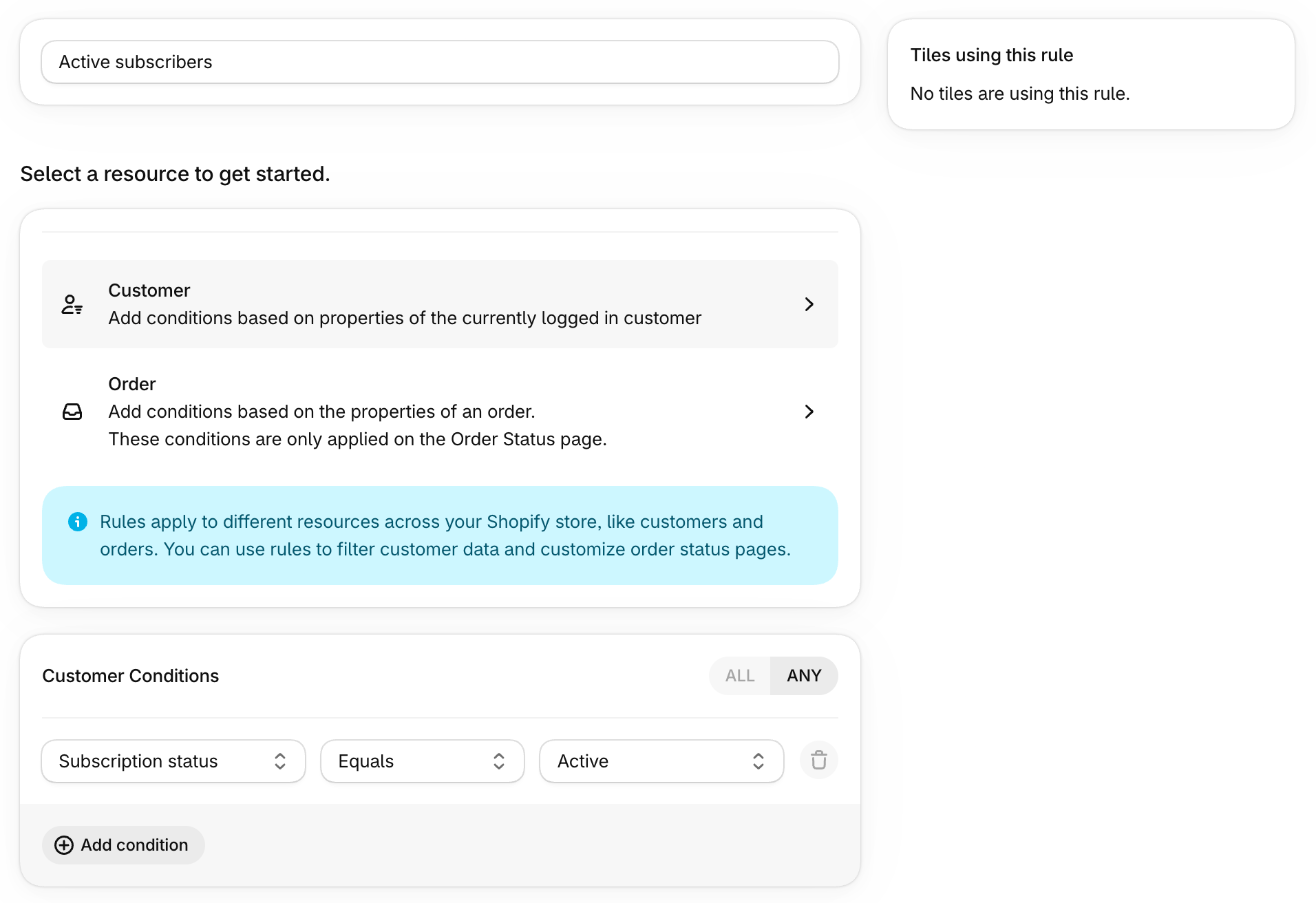
Pick the Subscription status property, choose Equals or Does not equal, then pick a status: Active, Paused, Cancelled, Expired, Failed, or Never subscribed. A few ways to use it:
- Equals Active shows a tile only to current subscribers, a good home for member perks or a reminder of their next delivery.
- Does not equal Active shows it to everyone else, the place for an invitation to subscribe and save.
- Equals Cancelled reaches customers whose subscription ended, which suits a win-back offer.
Active means the customer has at least one active subscription. Paused means they have a paused one and none active. Cancelled, Expired and Failed describe how their most recent subscription ended, when none is still running. Never subscribed is everyone who has not had one.
The status comes straight from Shopify, so there is nothing to set up: it covers every subscription app that runs on Shopify's own subscriptions, such as Shopify Subscriptions, Recharge, Loop, Skio, Seal and Appstle. The customer needs to be signed in for StoCu to know who they are. If your subscription app bills outside Shopify, its subscribers will not show here; most of those apps tag their subscribers, and a tag rule covers them instead. An assistant connected to StoCu can create the same rule by asking for the Subscription status property, for example "is Active".
Attach it to a tile
Open the tile and attach the rule from the Rules action. From then on, only matching customers see that tile.
Rules and variations
A rule on the tile decides whether a customer sees the tile at all. A rule on a variation decides which version of the tile they see. If you have been stacking several tiles with different rules in one spot, one tile with variations does the same job with less to manage.
Testing rules properly: the preview customer in Shopify's editor may not match your rule, so the tile can disappear from the editor while working exactly as designed. The reliable test is to create a test customer in your store that matches the criteria and log in as them.